Switch between tasks
Move between the tasks of a workspace, and see from any screen which one needs you.
Session list
Screenshot from Goodboy 0.23.0
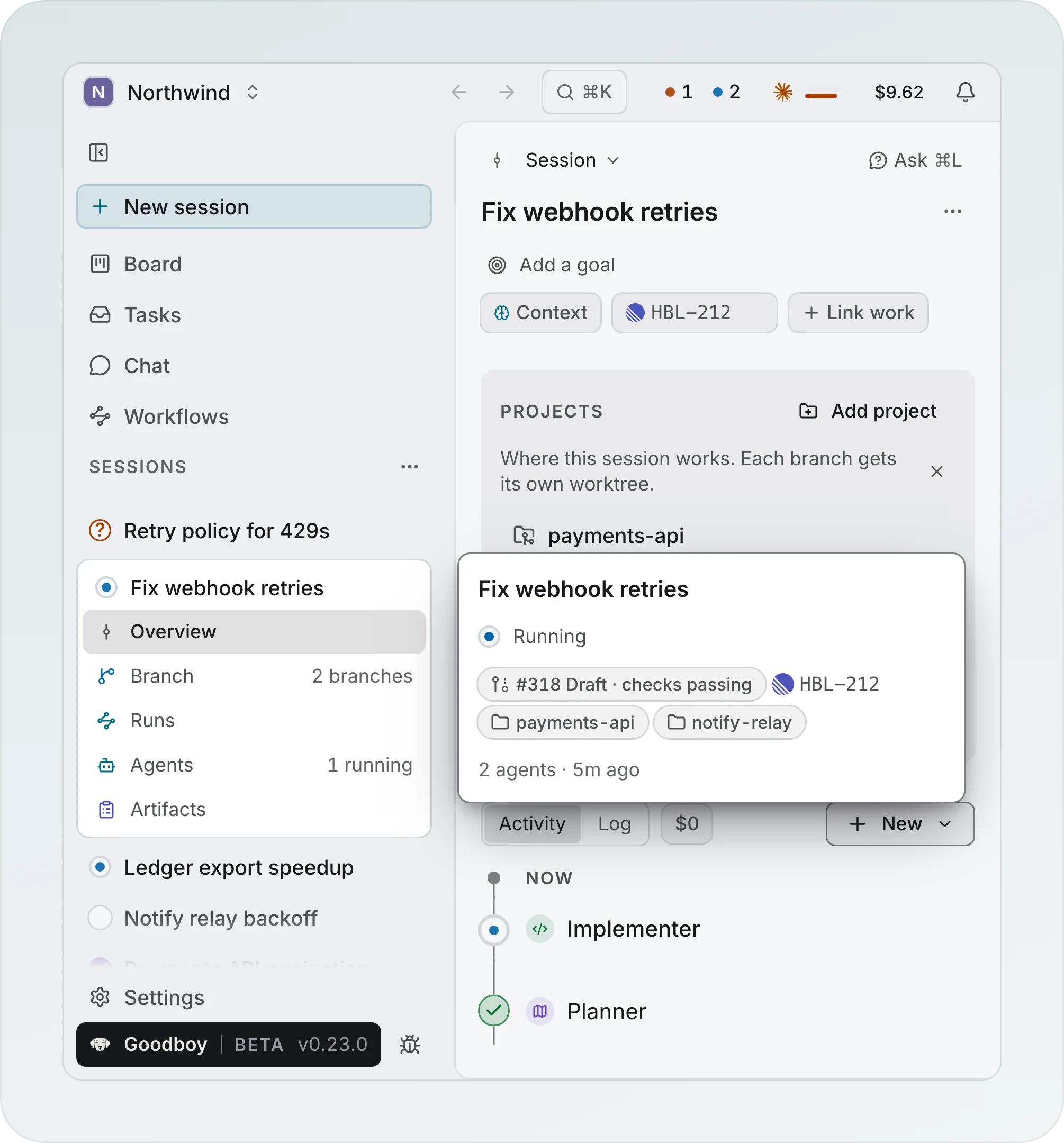
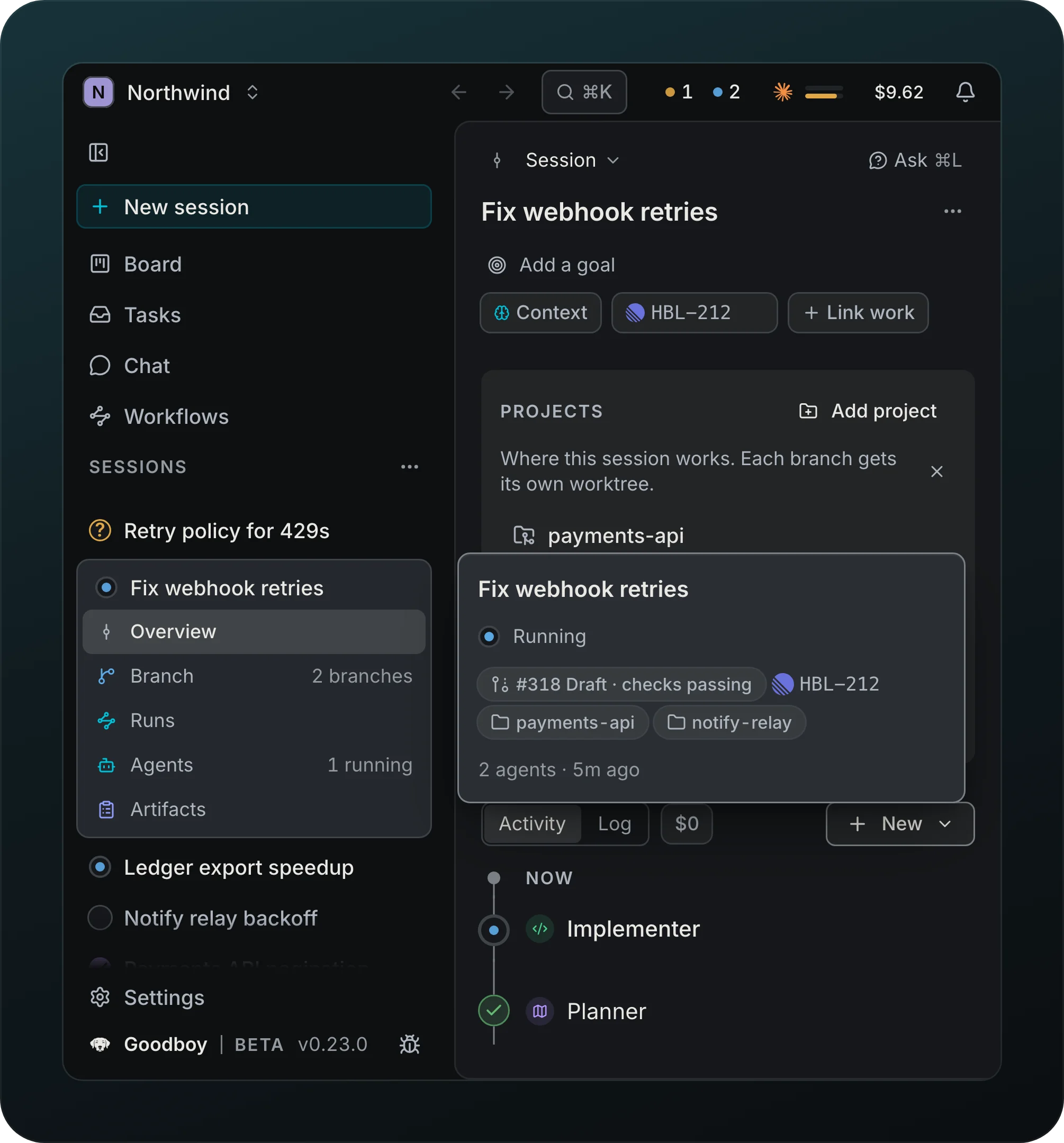
Move between tasks without losing your place. The list in the left column holds the sessions of the workspace, one line each: a small sign and the title. A turning ring means an agent is working, an amber ?, shield or ! means you must answer, approve or act, a green check means the pull request is ready to merge, a red ! means something broke, a filled violet check means it is done, and a plain ring means it is quiet. The sessions that need you sit on top, and the rest follow the one you opened last.
Rest the pointer on a row for half a second, or move the keyboard focus to it, and a card shows where it stands: the stage, the pull request and its checks, the linked tasks, the projects, the agents, the spend and the last activity. The session you have open sits in a card with its pages under its row, Overview, Branch, Runs, Agents and Artifacts, each with its count, so it is clear they belong to that session. Questions joins them while one is open. A chevron at the right end of the open session's row folds and shows its pages, and Goodboy remembers the choice for each session. Whatever you have open, one row shows where you are: the page, or the session itself when the page is a tool such as Terminal. A session with several branches lists them under Branch while you are on that page, and choosing one opens that branch on the tab it lands on.
Screenshot from Goodboy 0.21.1
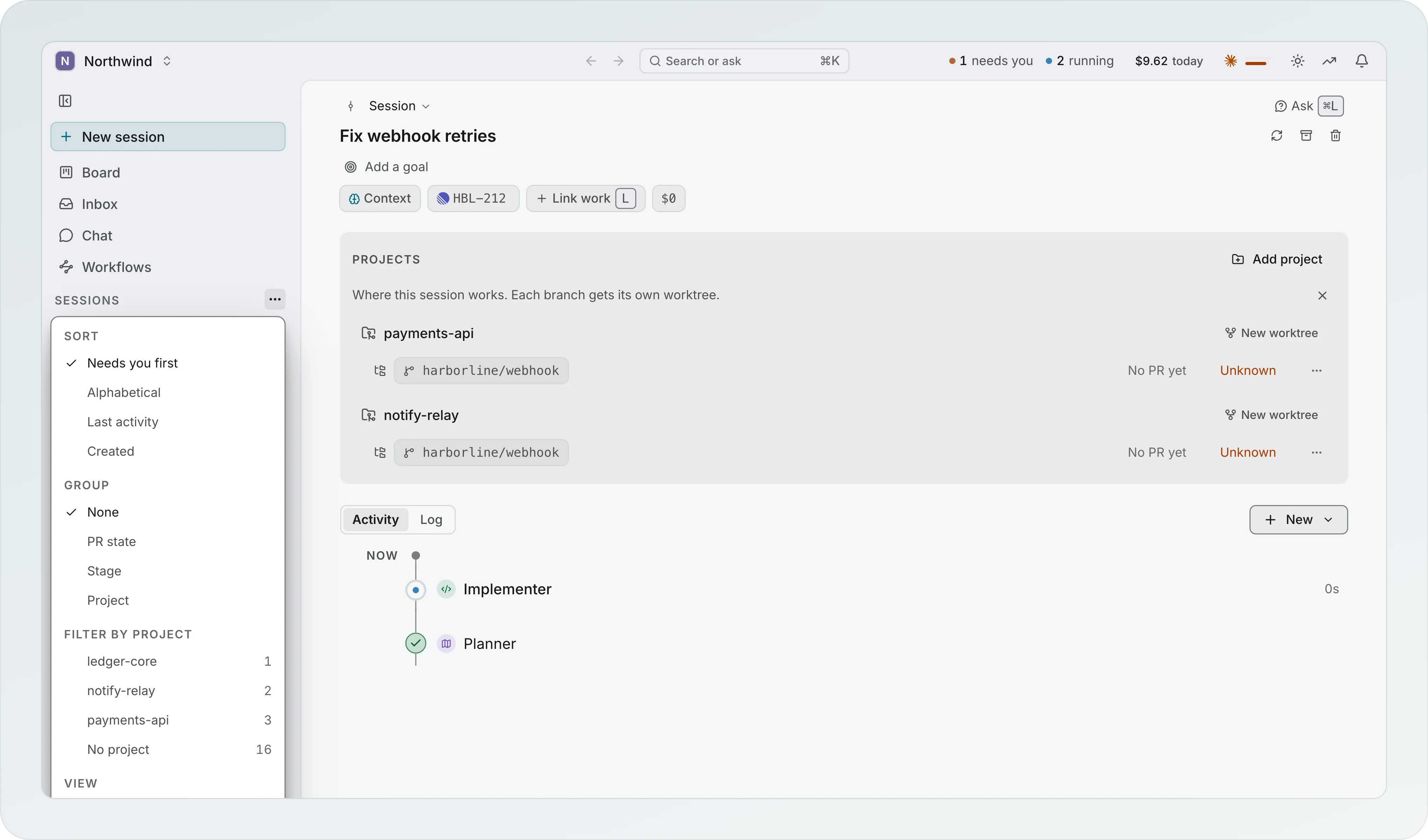
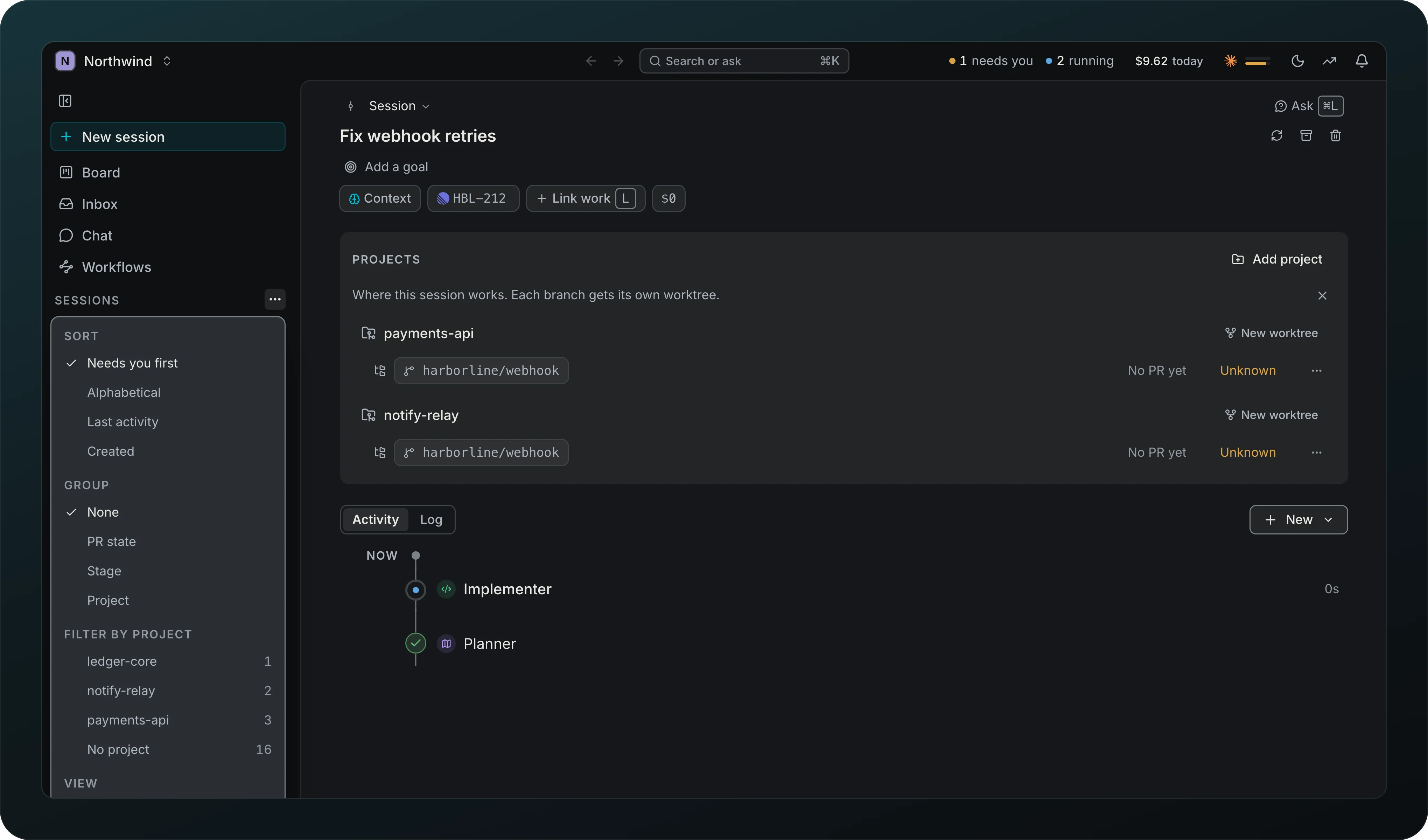
The options button in the Sessions header sorts the list by Needs you first, Alphabetical, Last activity or Created, groups it by None, PR state, Stage or Project, narrows it to a project and shows archived sessions. Goodboy keeps your choice for each workspace. The first eight rows show, and Show more opens the rest.
To switch without looking at the list, hold Control and press Tab to flip through your recent sessions, then let go to open one. Option Command Down jumps to the next session that needs you.
Pin a session to keep it at the top
With many sessions, keep the ones you return to at the top of the list. Choose Pin session from a row's right-click menu or from the command palette, and the session moves to a Pinned group above the rest, in the order you pinned them, whatever the sort, grouping or project filter. Unpin session puts it back. A pinned session you archive comes back to Pinned when you restore it. Hover a row to pin it from the pin at its right end, or use the pin in the session's title row. Move up and Move down in the row menu and the command palette set the order. The same order shows on the Board card, which carries a small pin, in the Pinned section of the Control-Tab switcher, and on the rail.
Fold the sidebar with the toggle and the rail keeps the open session and your pinned sessions as small signs under the doors. Hover or focus the open session to see its pages, its branches and your pinned sessions, and choose one. New shows a dot while a draft waits.
Now chip
Screenshot from Goodboy 0.21.0
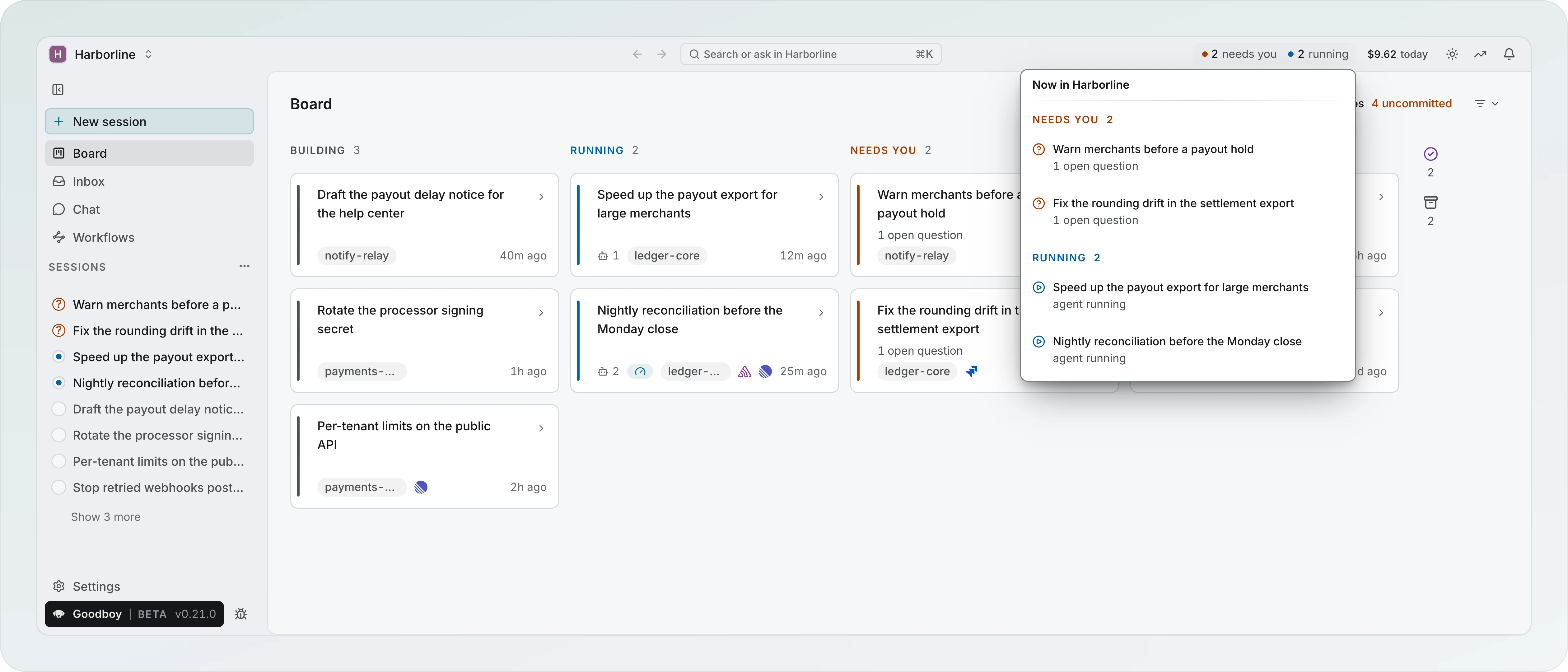
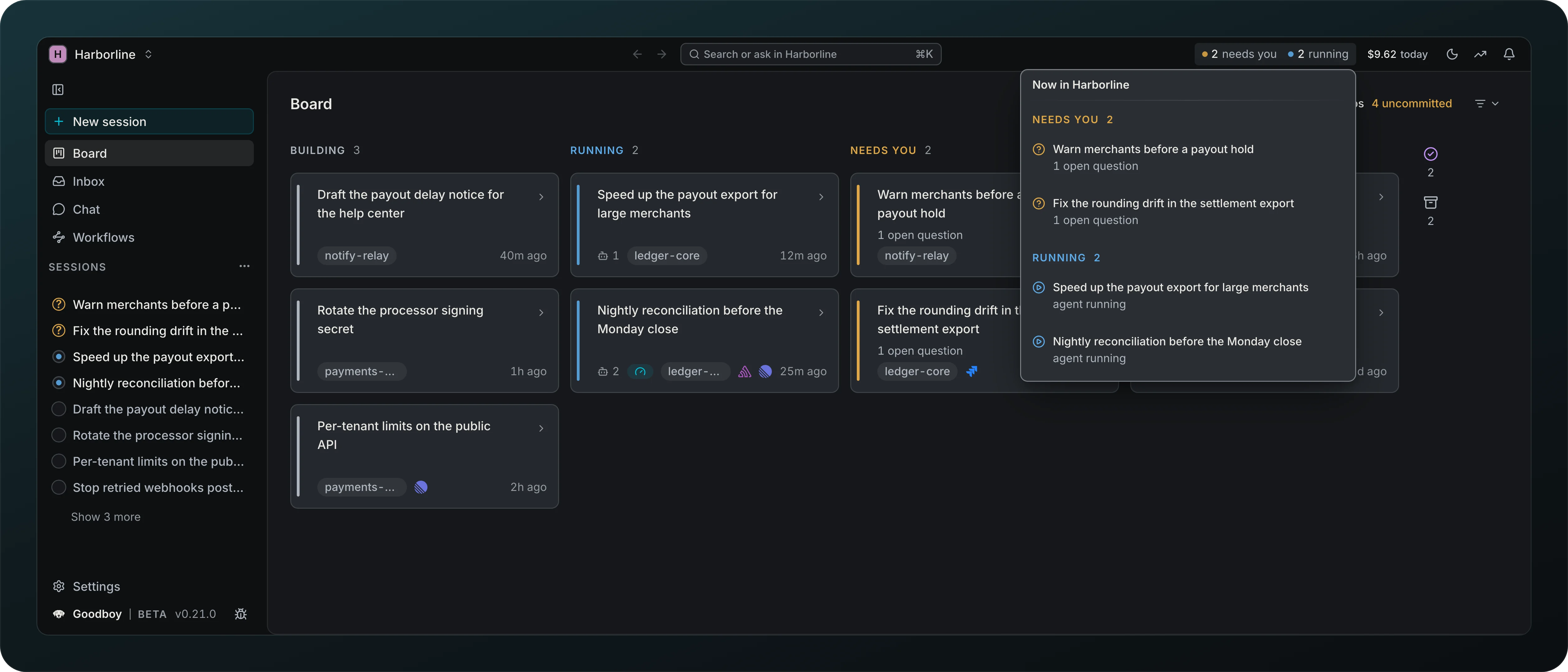
Know what needs you from any screen. The chip in the top bar counts sessions that need you, running sessions and running scripts. Click it to open Now in Harborline, which lists each one, and click a row to jump to that session.
Notifications
Screenshot from Goodboy 0.13.1
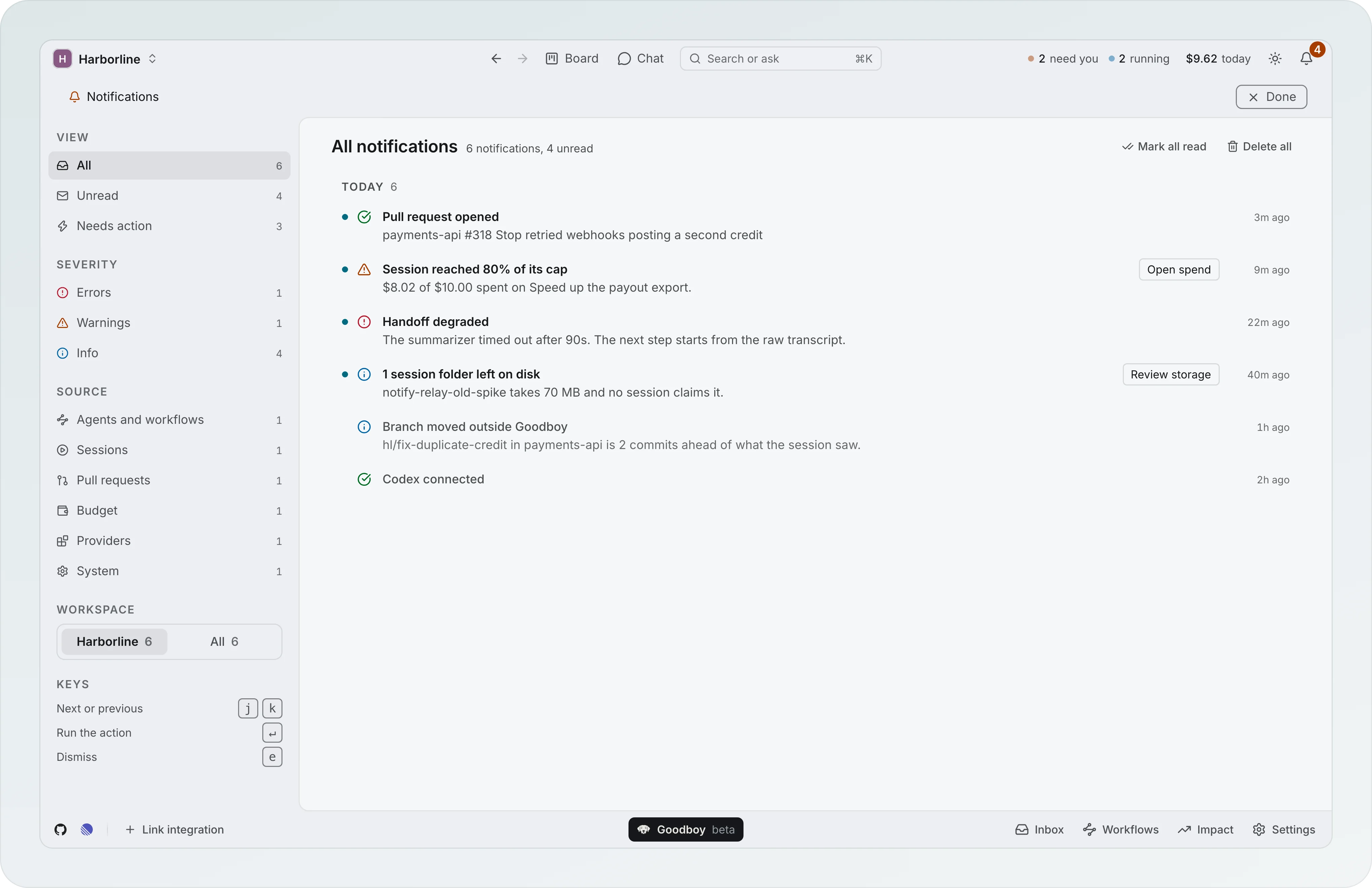
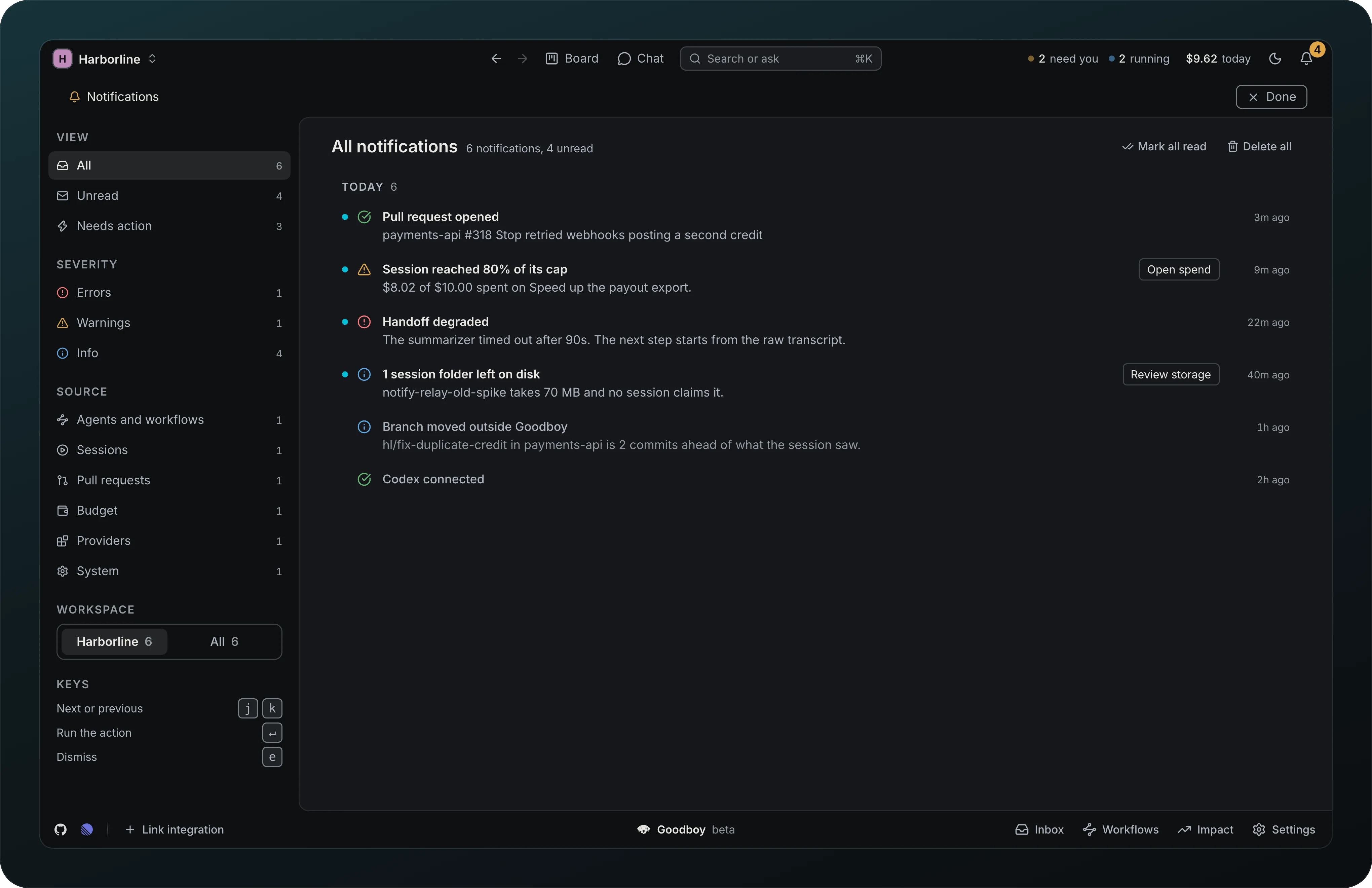
Catch up in one place. Everything Goodboy has to tell you, from a pull request opened to a session close to its spending cap, lands in one list: a bell with an unread count, and a page grouped by severity, source and workspace. Unread and Needs action cut it down, and a row that needs you carries its next step, like Open spend or Review storage.
Open in new window
Give each workspace its own window, so switching does not interrupt running agents. A workspace that is already open brings its window forward instead of opening twice. After a reload or an update, and on every launch with Reopen last workspace on launch on, every window comes back on the screen, tab and panel it showed.