Set up
Get from install to a first agent: connect a provider, check what it can do, link your tools and tell agents who you are.
Welcome to Goodboy
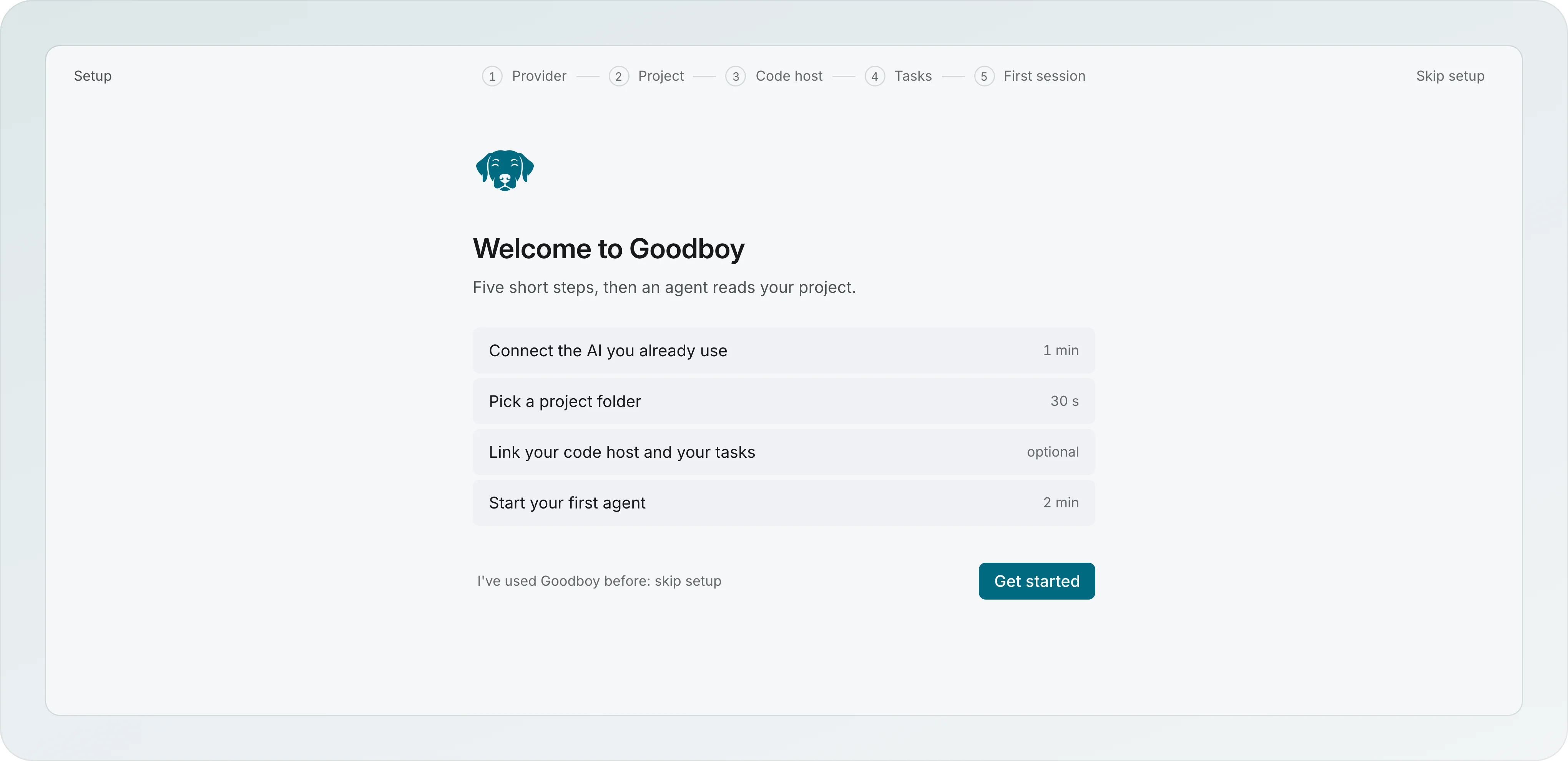
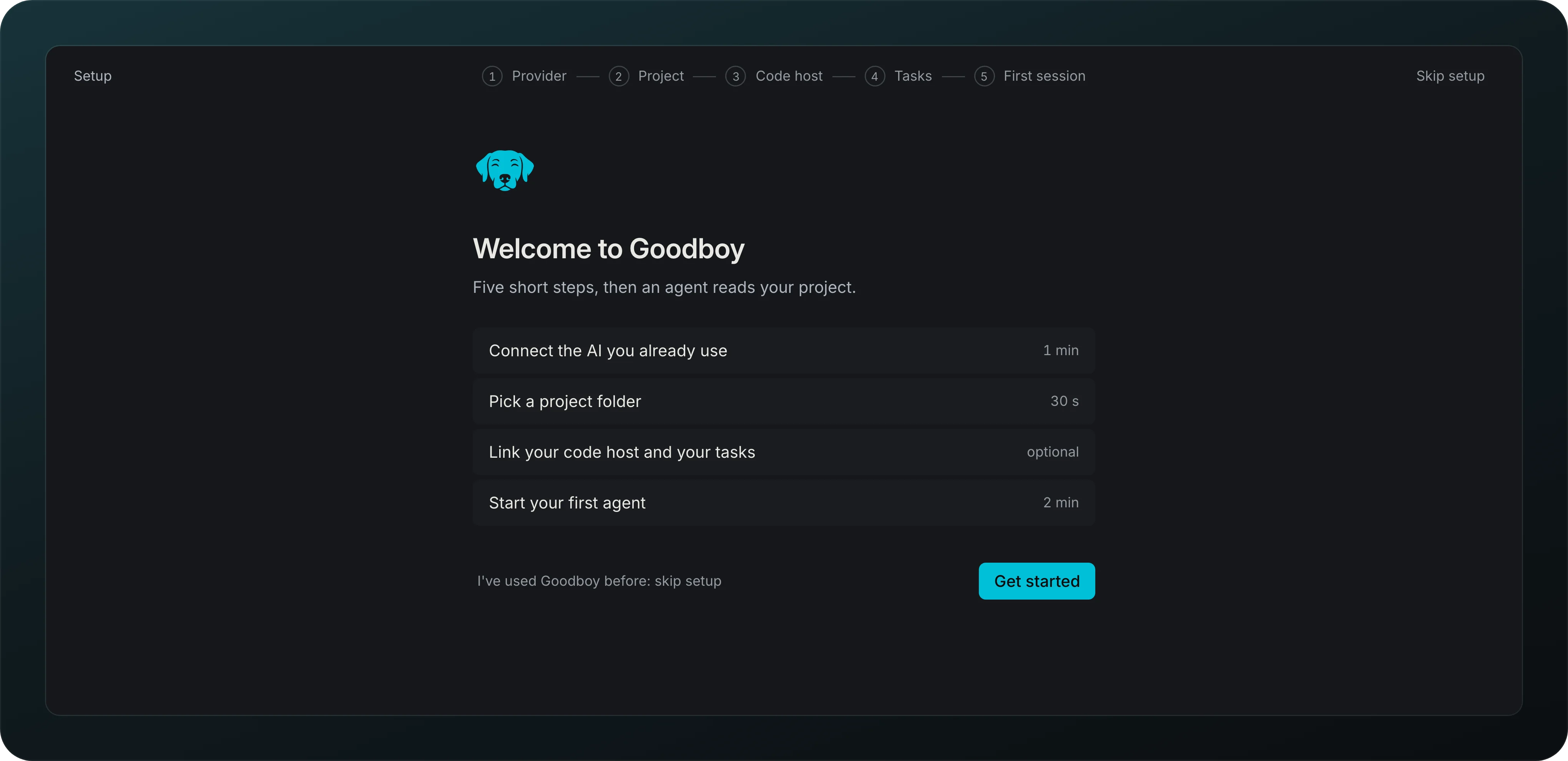
Follow five short steps from install to a first agent reading your project: Provider, Project, Code host, Tasks and First session. Code host and tasks are optional, steps that do not apply to you are skipped, and Skip setup takes you straight in. The last step hands you a session draft already filled in.
Provider connection
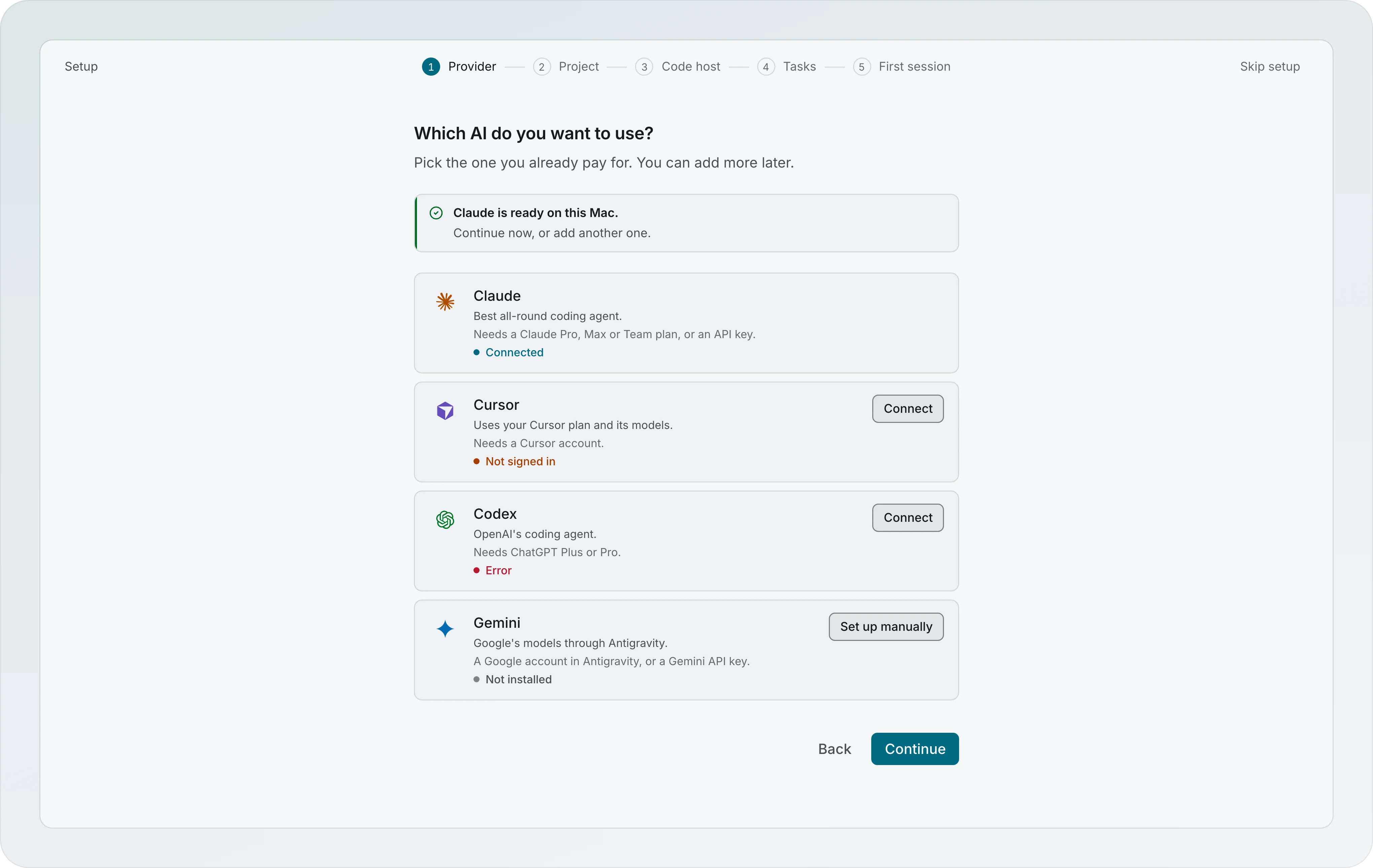
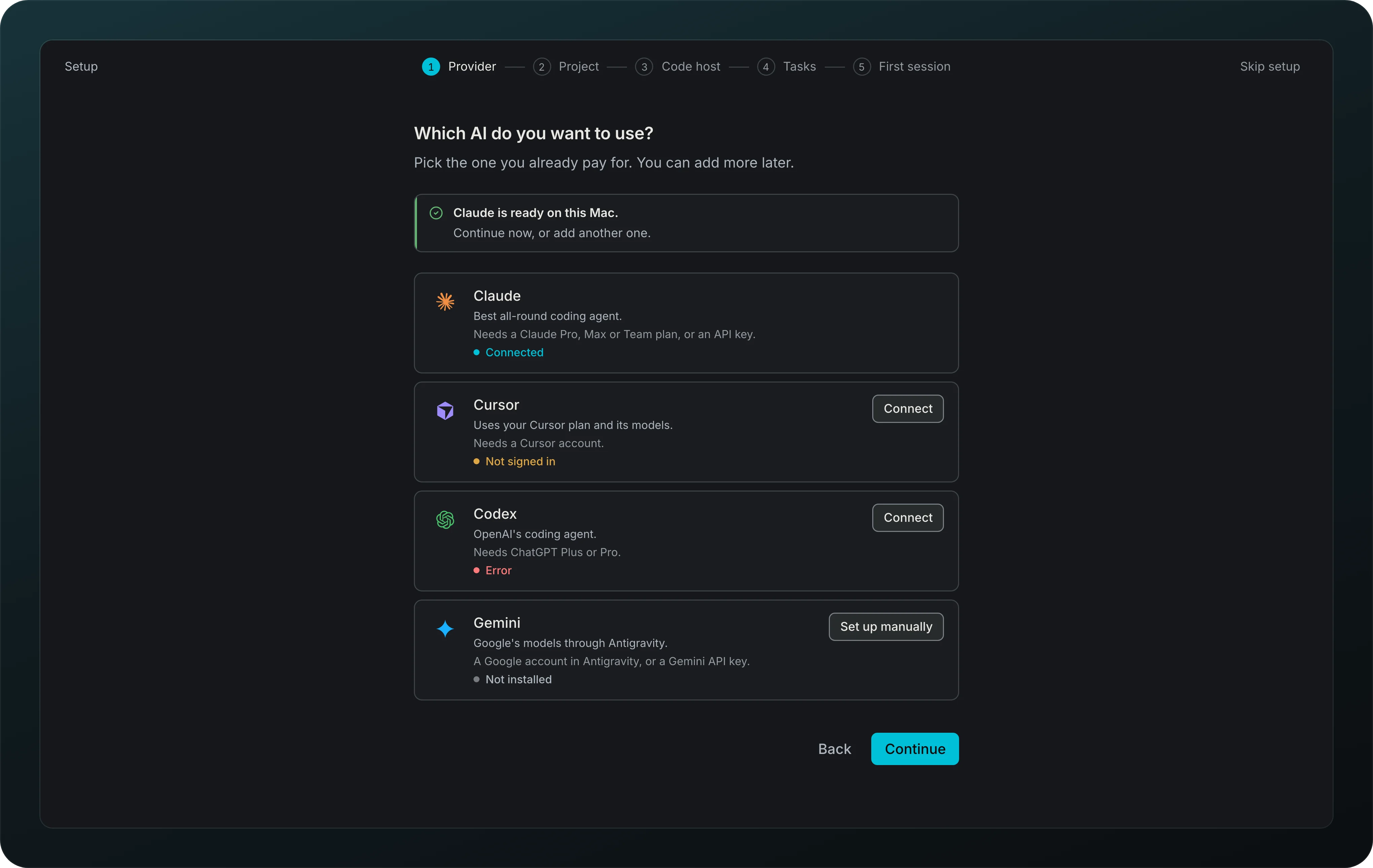
Pick the provider you already pay for and connect it with a login or an API key. Each card says what the provider needs and where it stands: Connected, Not signed in, Not installed. Connect walks you through the sign-in, and Open the sign-in page again helps when no browser tab opened. You can add more providers later.
One page per provider
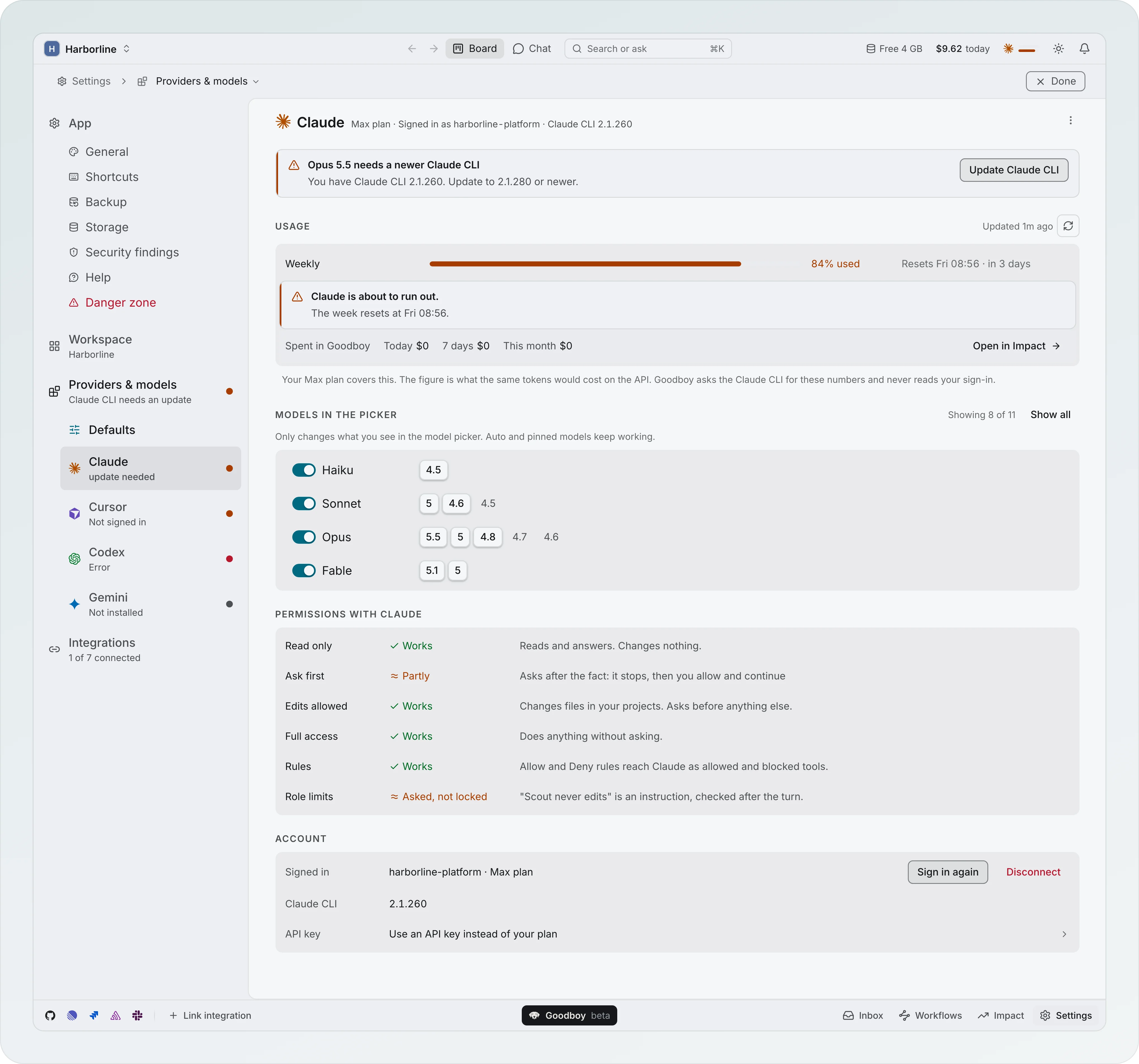
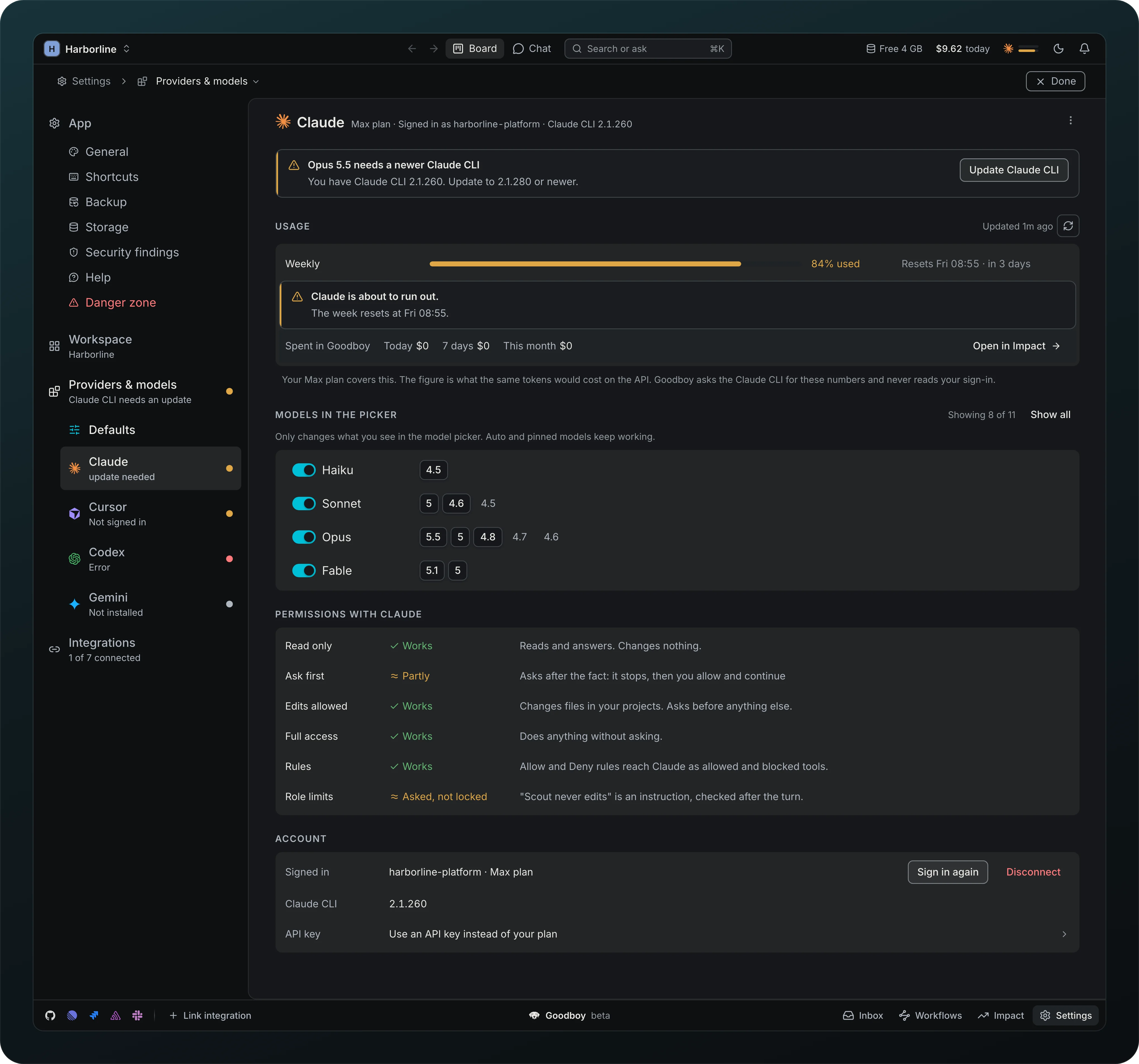
Find everything about a provider on its own page in Providers & models: Usage with the weekly window, Models in the picker with a switch per model, Permissions, and Account with Sign in again and Disconnect. Providers billed per token say so instead of showing usage windows.
Update the provider CLI


See when a model needs a newer CLI, right under the Account rows of the provider page, and press Update Claude CLI to install it. The update waits for running turns to finish. A turn the CLI refuses retries on the closest model in the same family.
Permissions for each provider
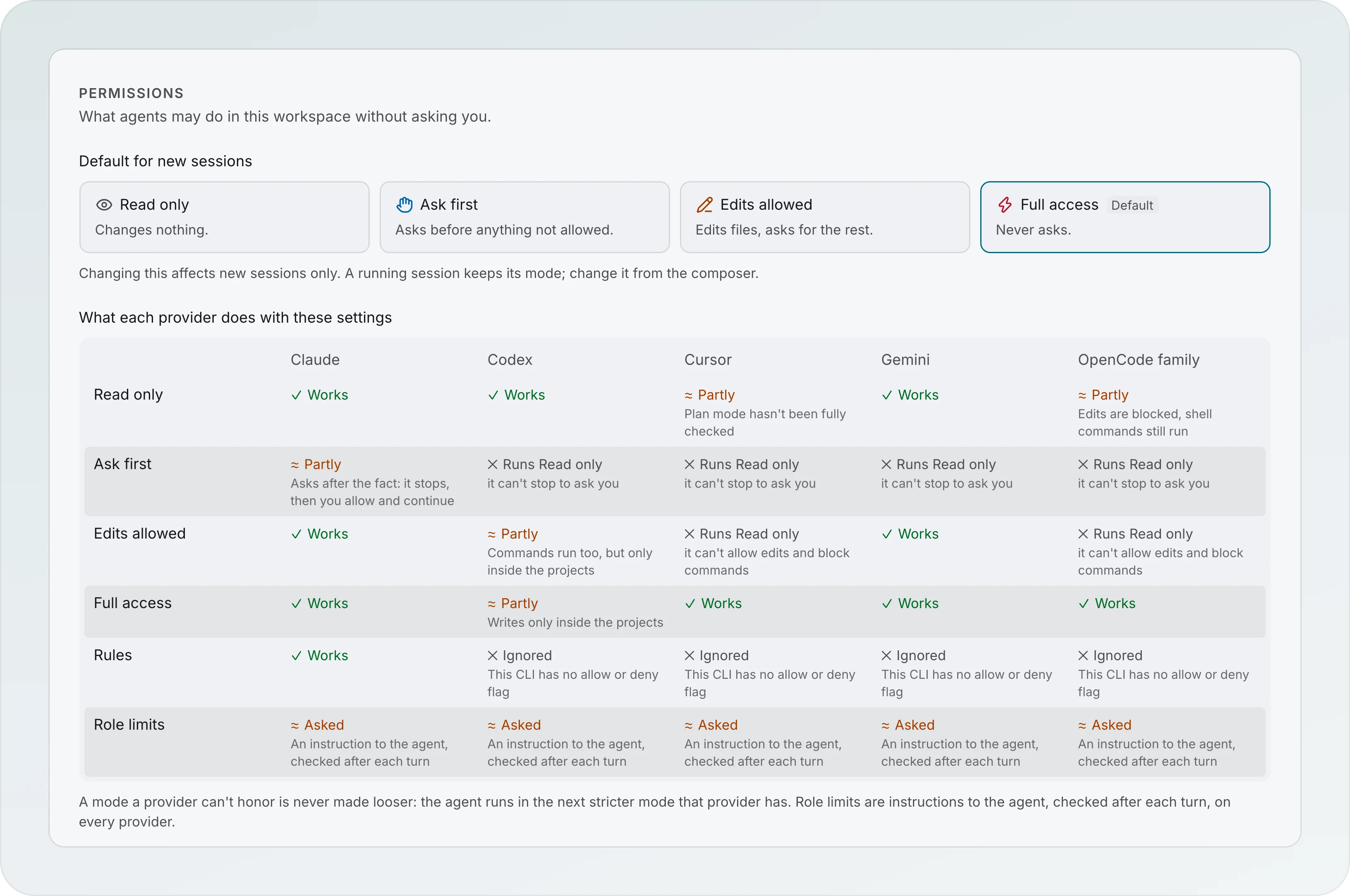
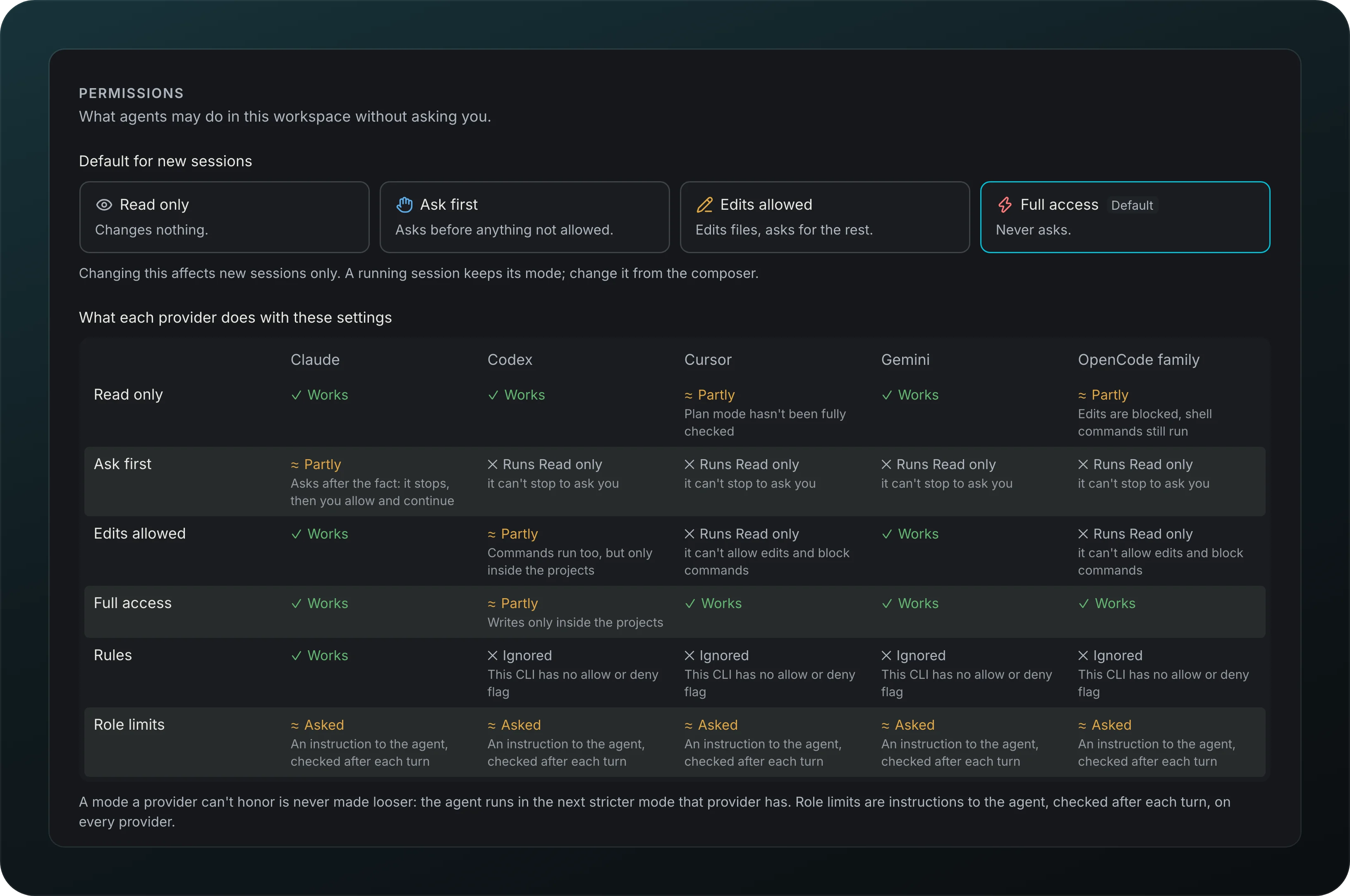
Check which permission modes a provider can honor before you pick one: Read only, Ask first, Edits allowed and Full access. The table marks each cell as Works, Partly or Runs Read only, with the reason underneath, and adds a Rules row and a Role limits row. A mode a provider cannot honor never runs looser: Ask first on Codex runs as Read only. The default mode for new sessions sits above the table.
Integrations
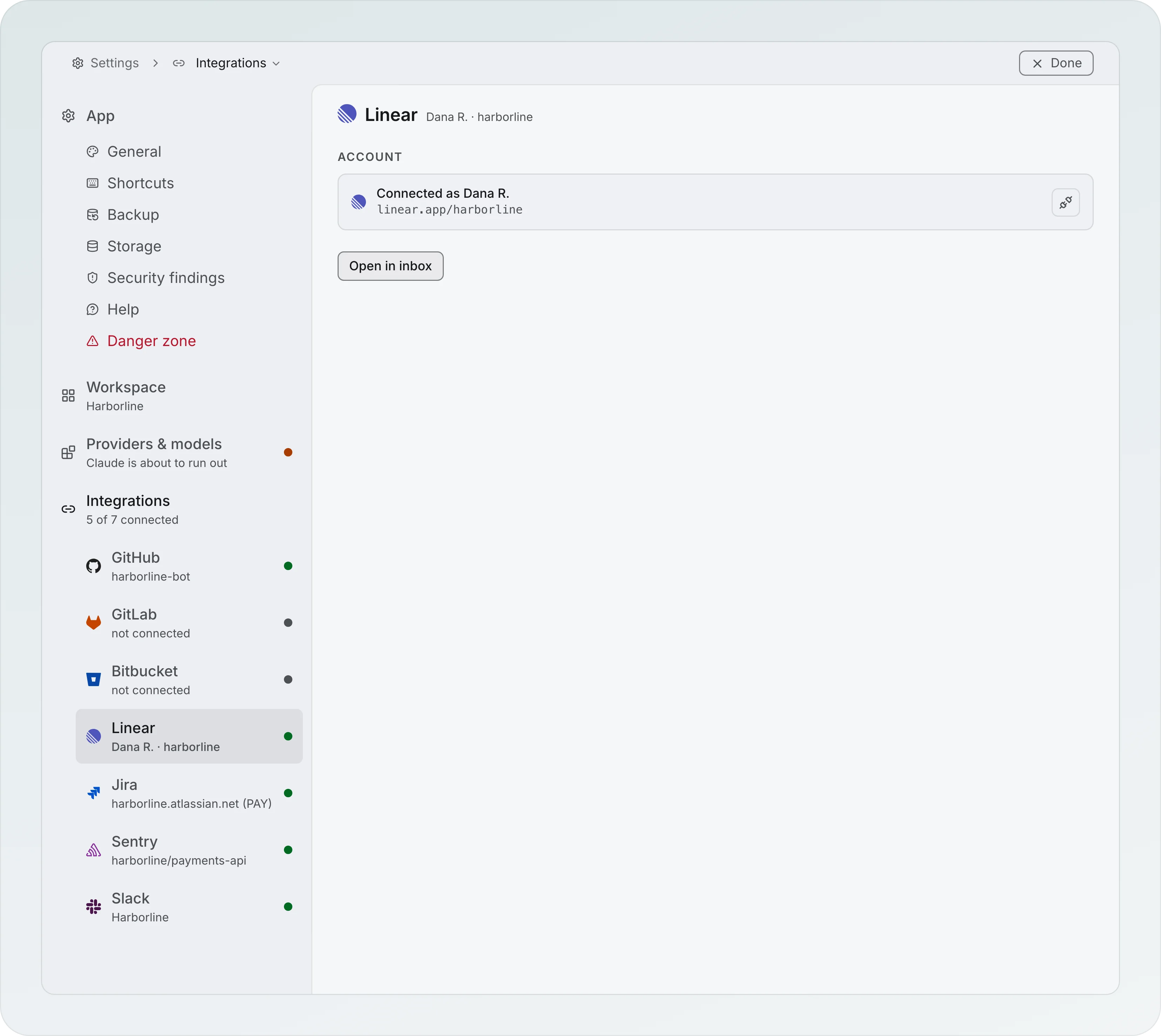
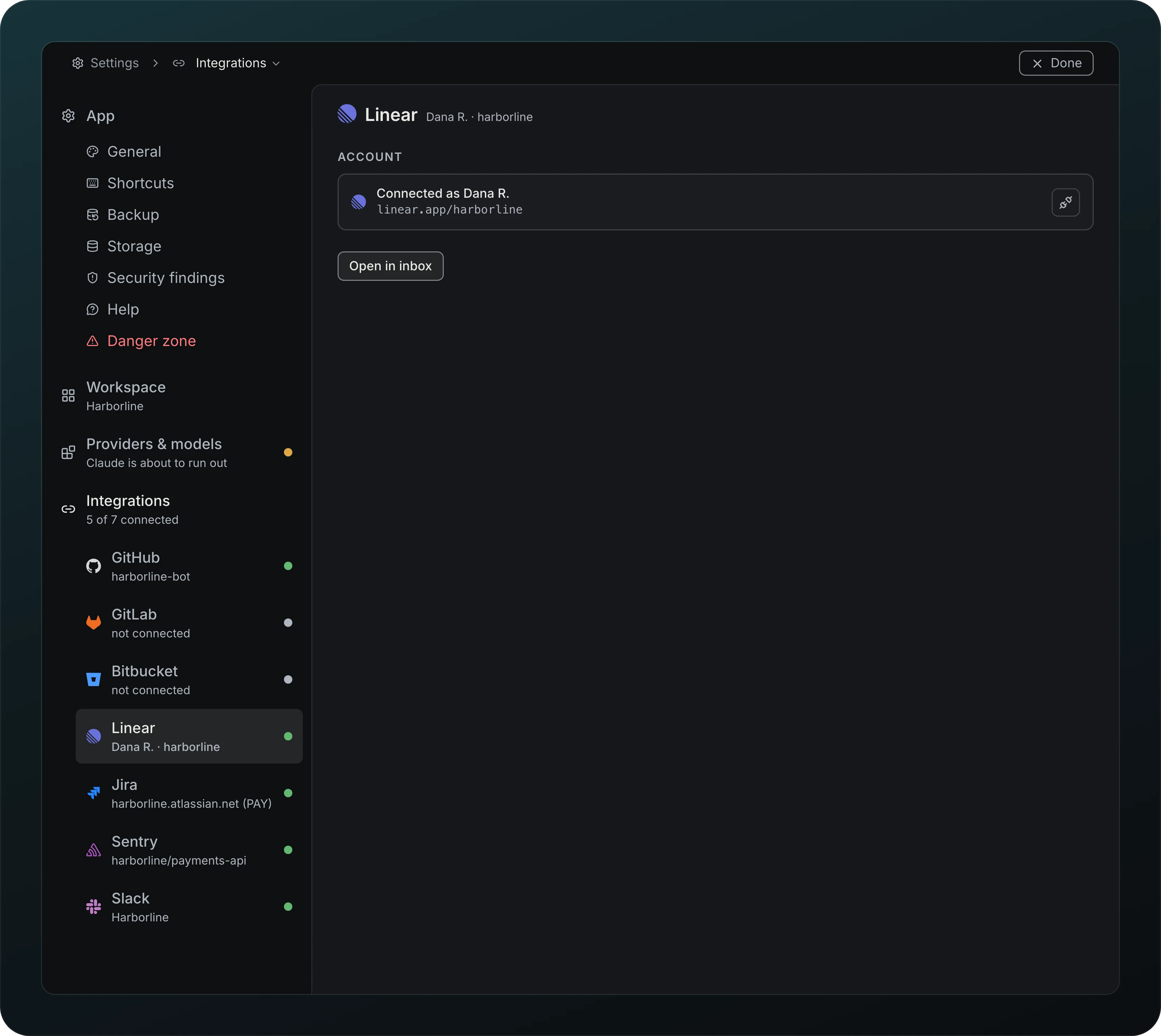
Connect GitHub, GitLab, Bitbucket, Linear, Jira, Sentry and Slack from one page. The list shows the account behind each tool and how many are connected, and each tool opens to its own page. Give a project a different account than its workspace when you need to. Keys stay in your system credential store.
About you
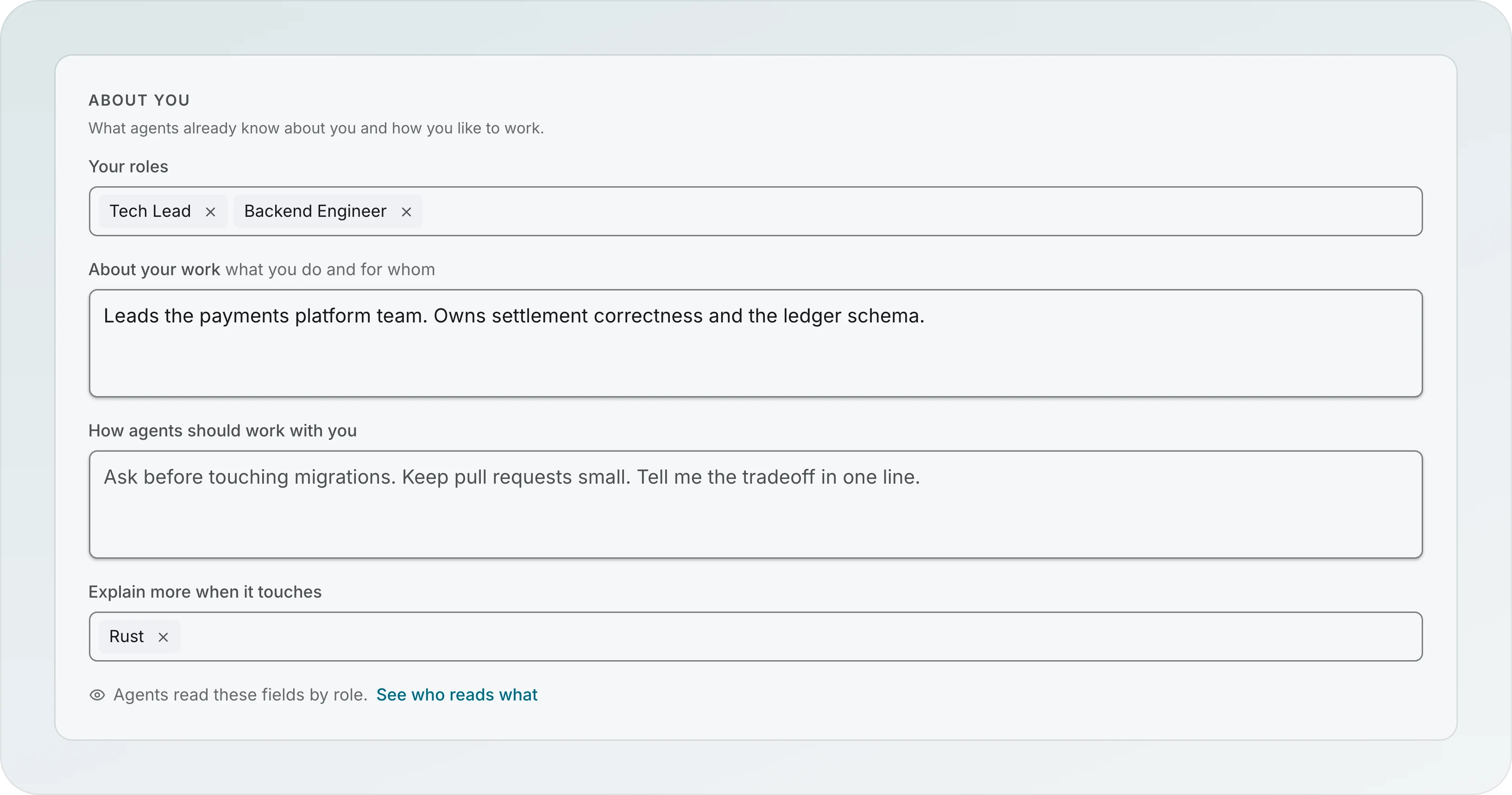
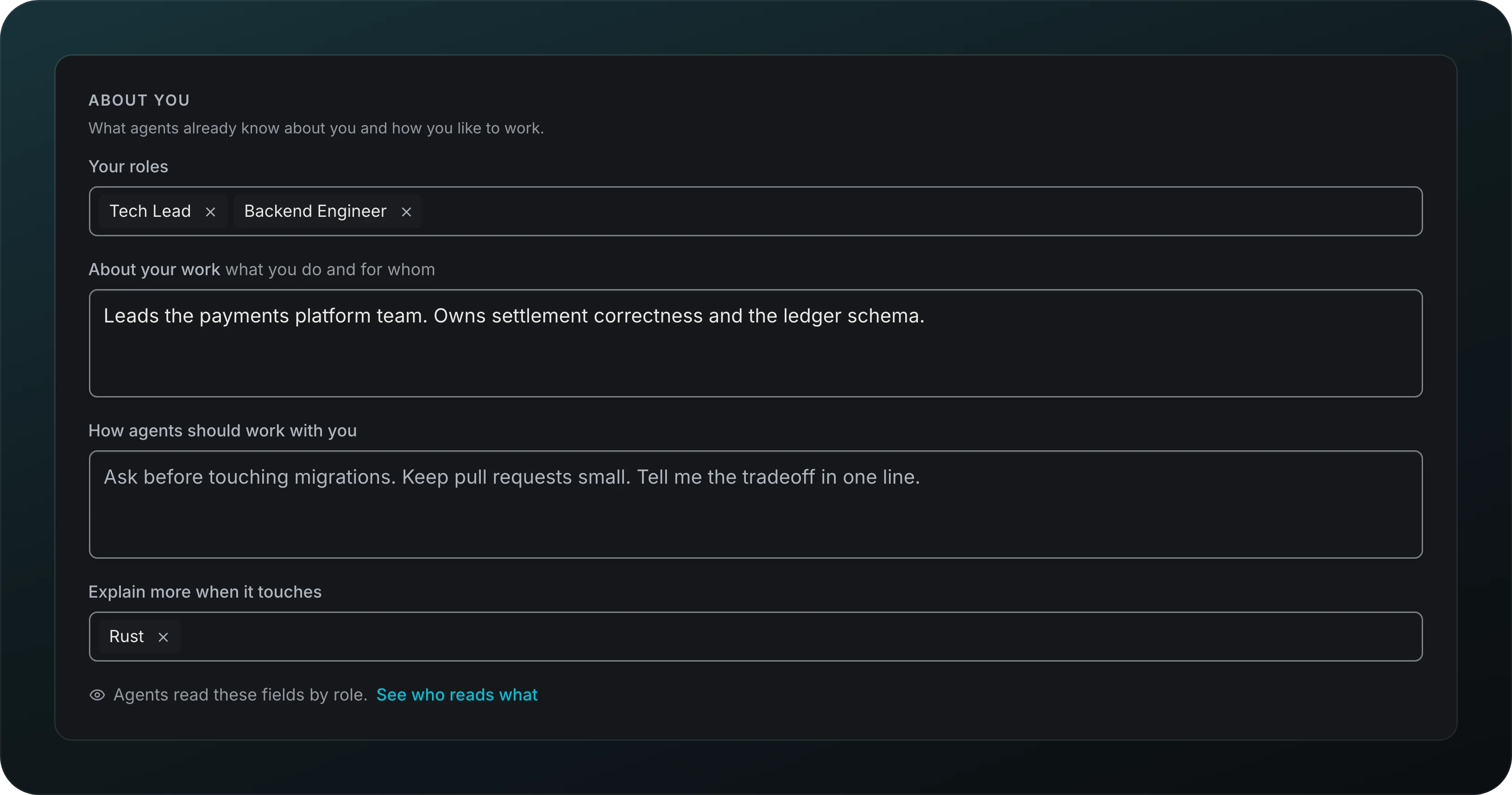
Tell agents once who you are and how you like to work, in four short parts: Your job, About your work, How agents should work with you and Explain more when it touches. See who reads what shows which role reads each part. Under Explain more when it touches, Learned · 12 · Open opens what agents explained about your topics in this workspace, grouped by topic, with the project and age of each one. A learning from a deleted session stays and says Deleted session.
Settings
Find any setting from the sidebar: Settings takes it over with Back to app, a Search settings field and every page. Settings at the foot of the sidebar and ⌘, open on the page you used last, or on General the first time after the app starts. The rail lists App, Workspace, Providers & models and Integrations, and a small dot marks a row that needs you, named by what is wrong. Every page is also in the palette, like Settings: Storage; a link that names a page opens that page. Open with, in General, picks the editor worktrees open in and the browser for links and artifacts. Drag the edge of a rail, or use the keys or a double click, to resize it, and each one remembers its width.
Also in this area
| Feature | What it does for you |
|---|---|
| Settings rail | Each settings area says what needs you, like folders not found |