Workspace and projects
Keep your repos together, and let sessions work across them.
Start a project from nothing
Begin with an empty folder and no repository. Start a new project on the empty screen, in the workspace launcher and in the setup wizard makes the folder, starts a git repository on main with a first commit that holds only a .gitignore, and opens a first session that works in that folder. Publish creates a repository on your GitHub account, private or public, or links one you already have. Without GitHub's command line tool the panel opens on Use an existing repository; choosing GitHub there shows the install command (brew install gh on macOS, a link elsewhere) with Copy and Check again, and the Publish button appears only once it can work. When main is on the remote, Move my work puts what you have not committed into a session named bootstrap with its own worktree, and the folder is clean again.
Workspace with several projects
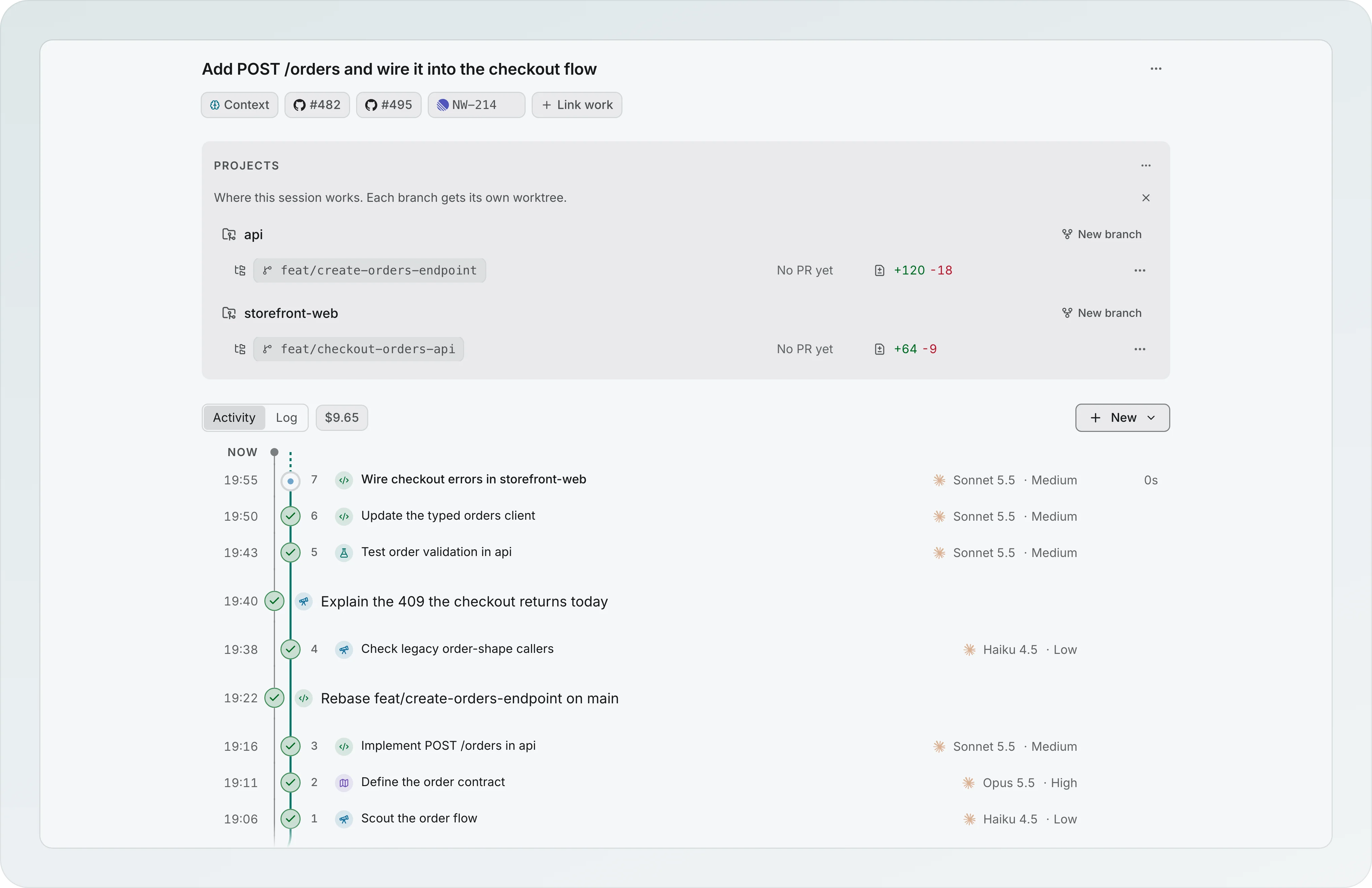
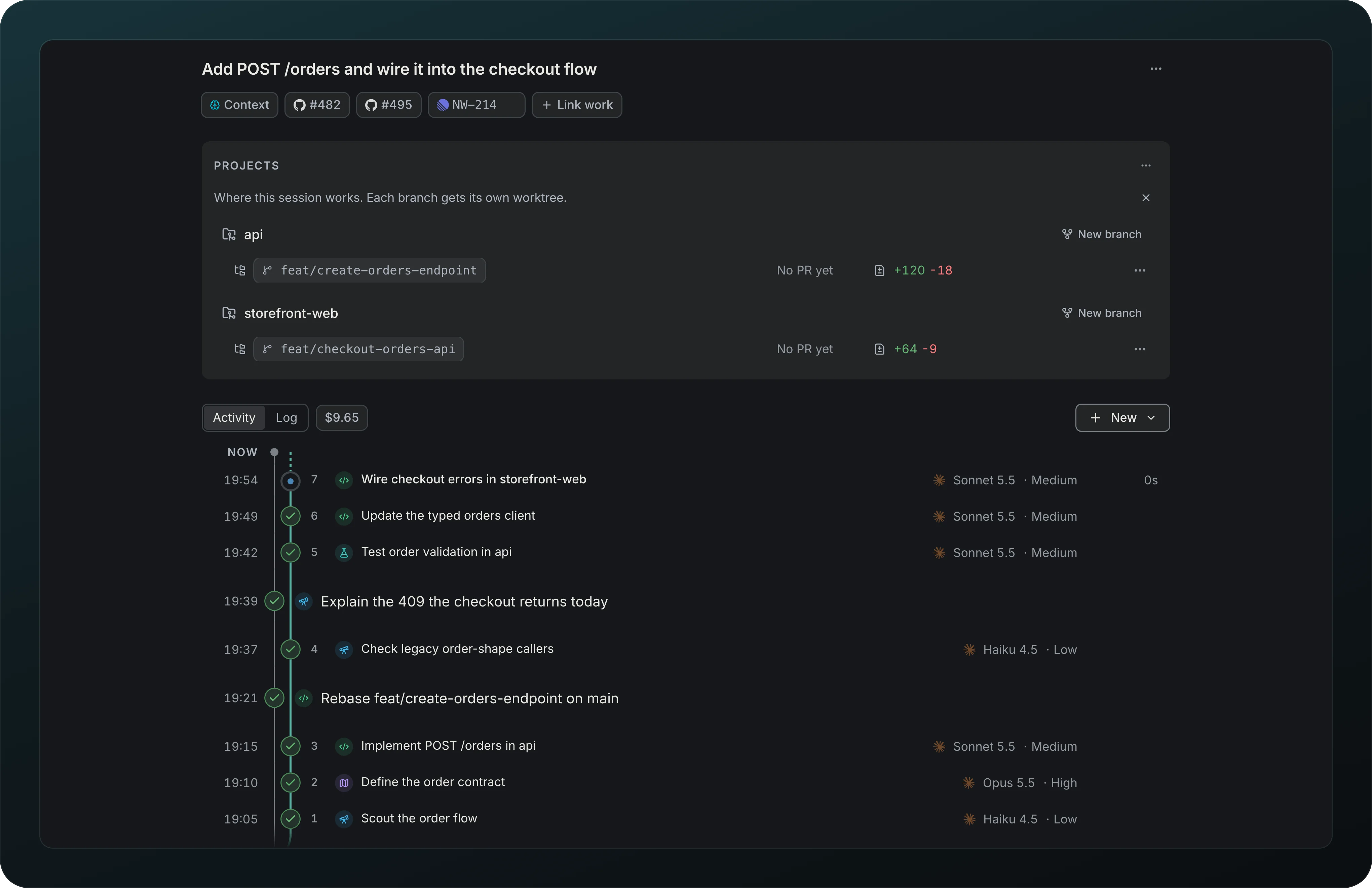
Screenshot from Goodboy 0.23.0
Keep your repos together as one workspace, and let one session work across several of them. The Projects section of the session lists each repo it touches, with its branch, the size of its changes and New branch. A project gets a branch only when an agent needs to edit it.
Starred projects, descriptions and base branch
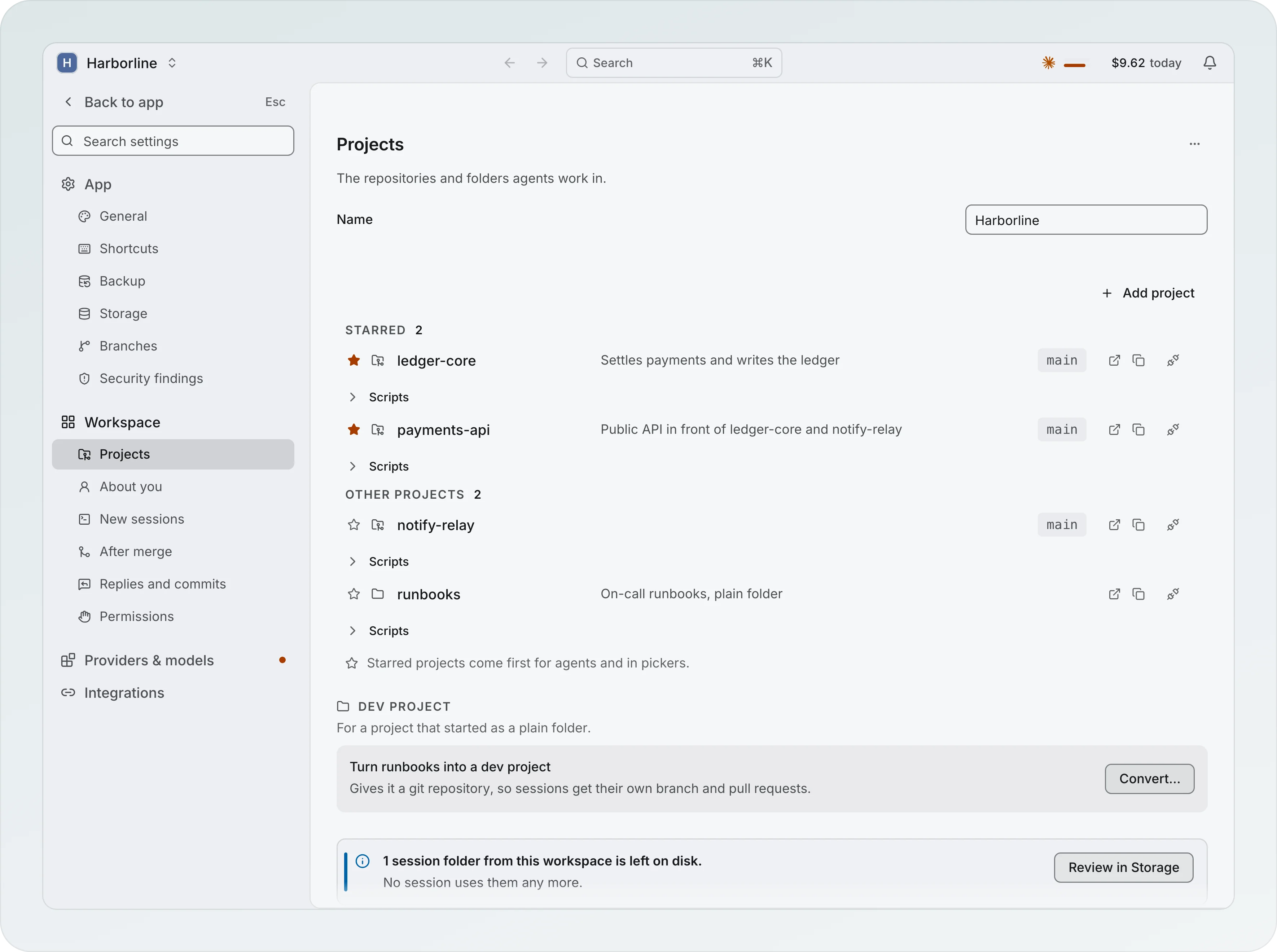
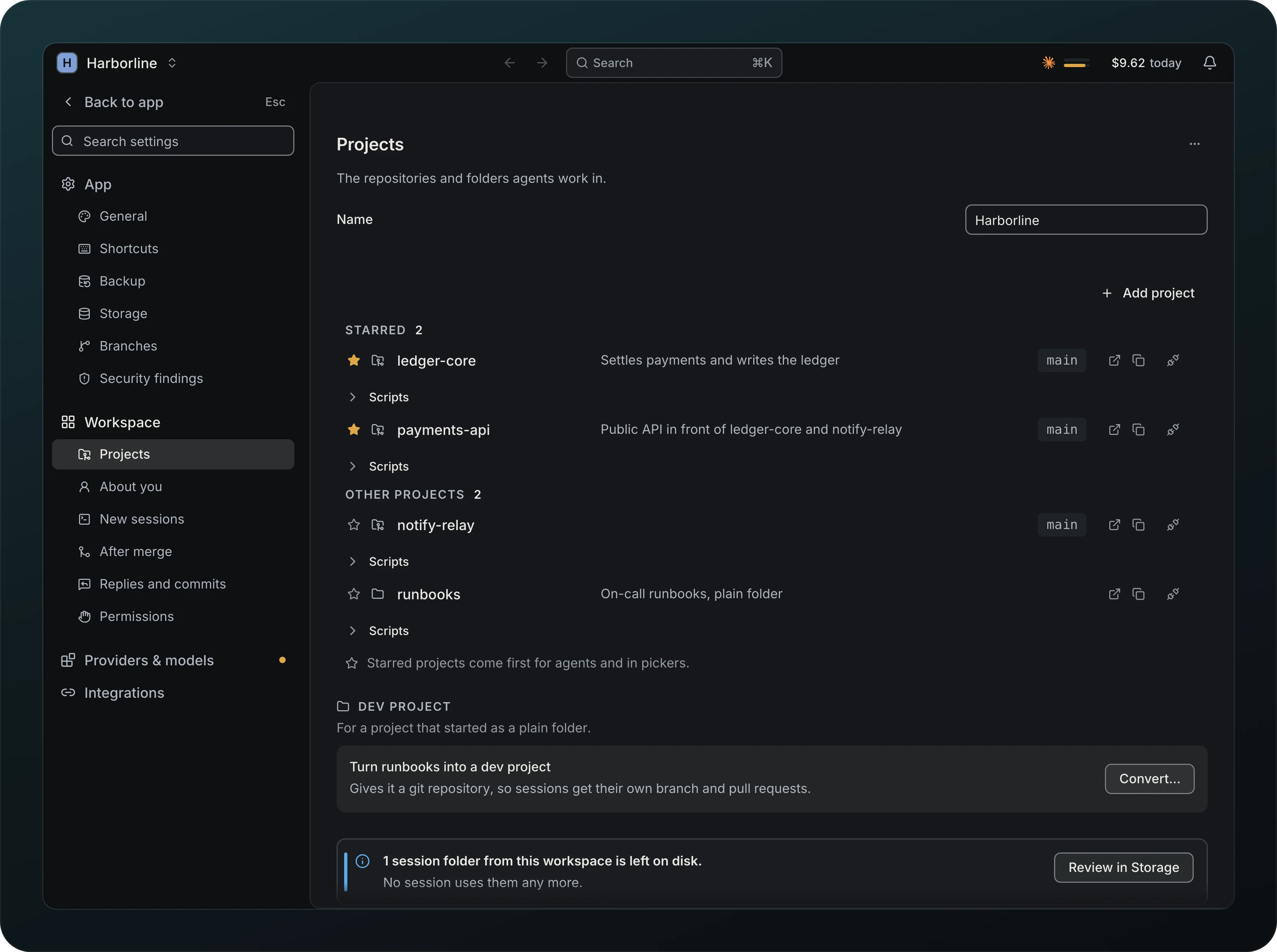
Screenshot from Goodboy 0.23.0
Point agents at the right repo without naming it. Star a project and give it a one-line description: both go into each agent's brief, and starred projects come first in the project pickers. In the project list they sit under Starred, and the rest under Other projects. Each repo shows its base branch, main here, read from origin.
Worktrees
Screenshot from Goodboy 0.23.0
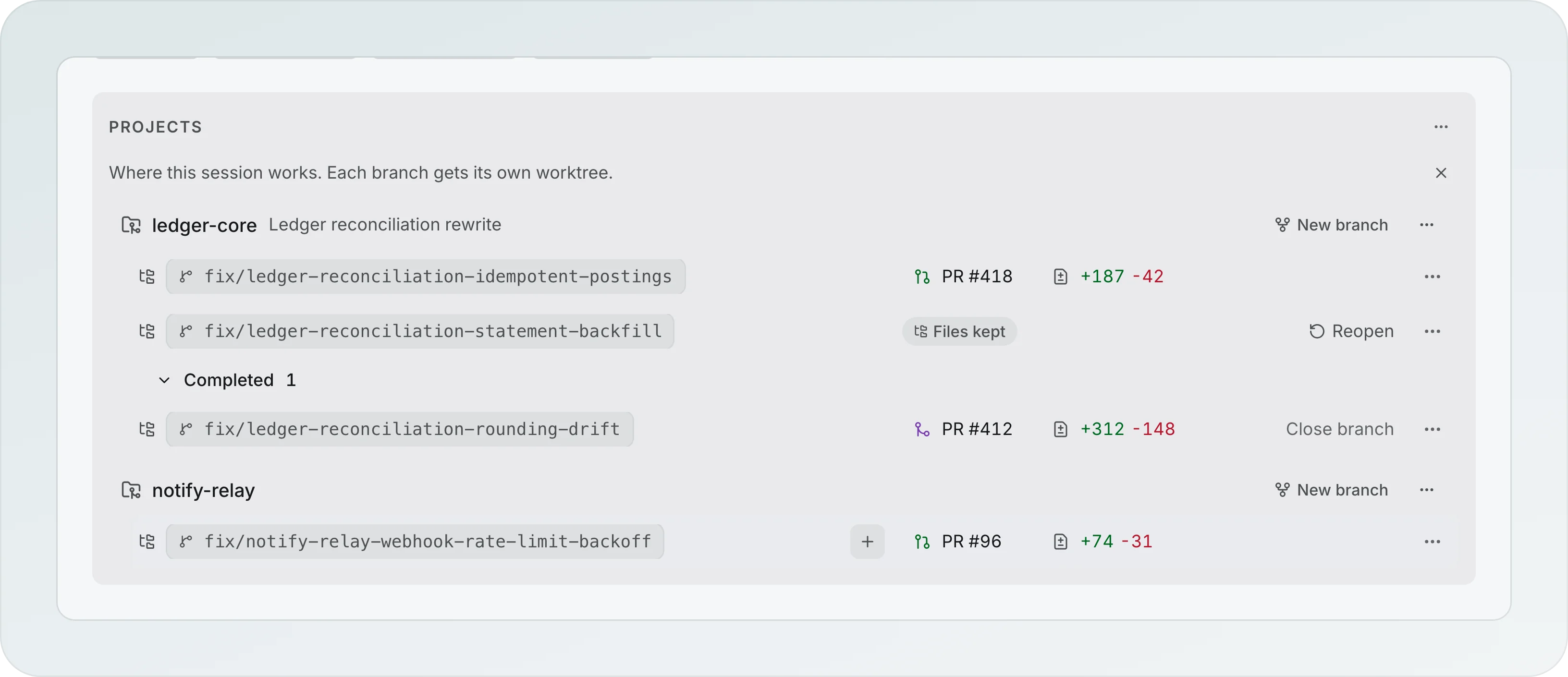
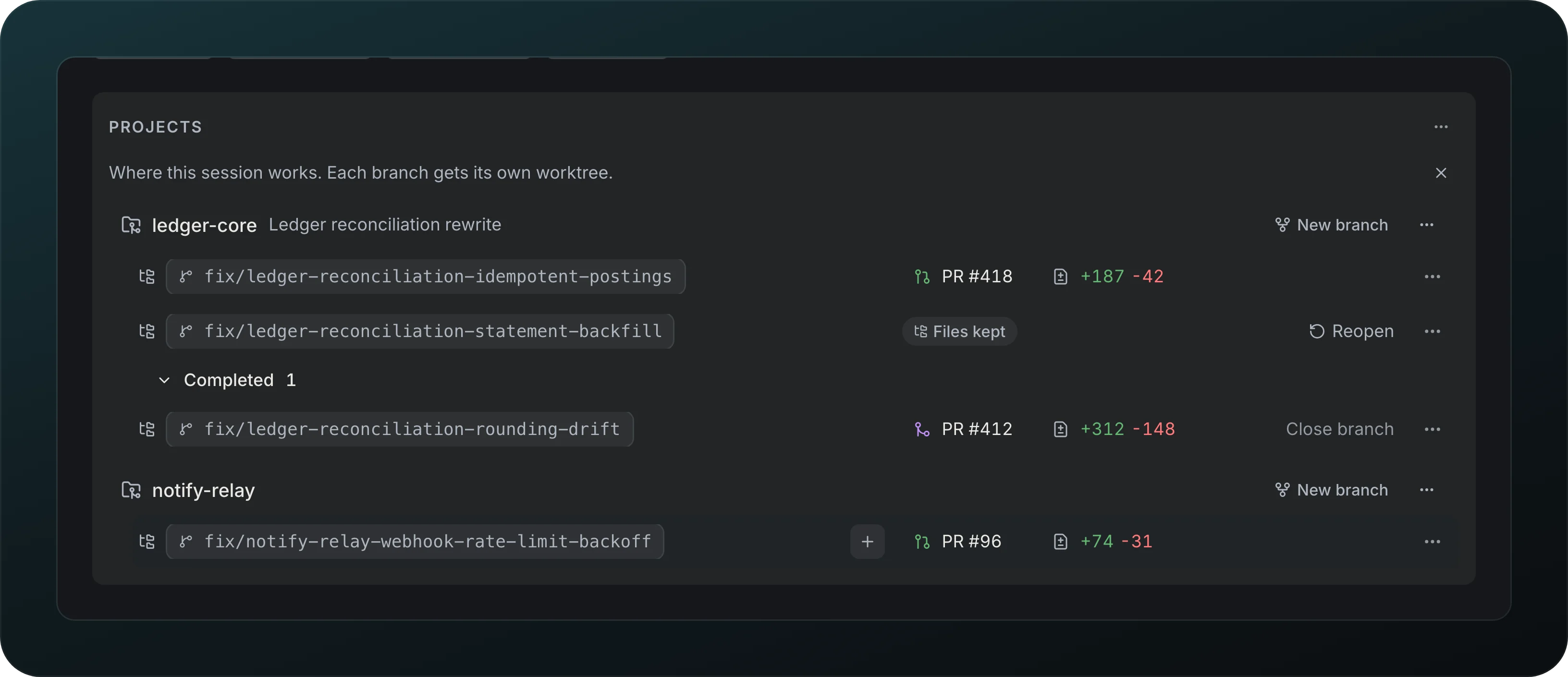
Let agents edit in parallel without touching your checkout. Each branch gets its own worktree, a separate folder next to your checkout with its own changes and pull request, and every row shows its part, its lines changed and its pull request. New branch adds one, Close branch clears a merged one, and Reopen brings back one whose files were kept. Copy worktree path in ⌘K copies where a session works, or lets you pick one when it has several, with ⌘Enter to copy them all.
Several branches per project
Screenshot from Goodboy 0.23.0
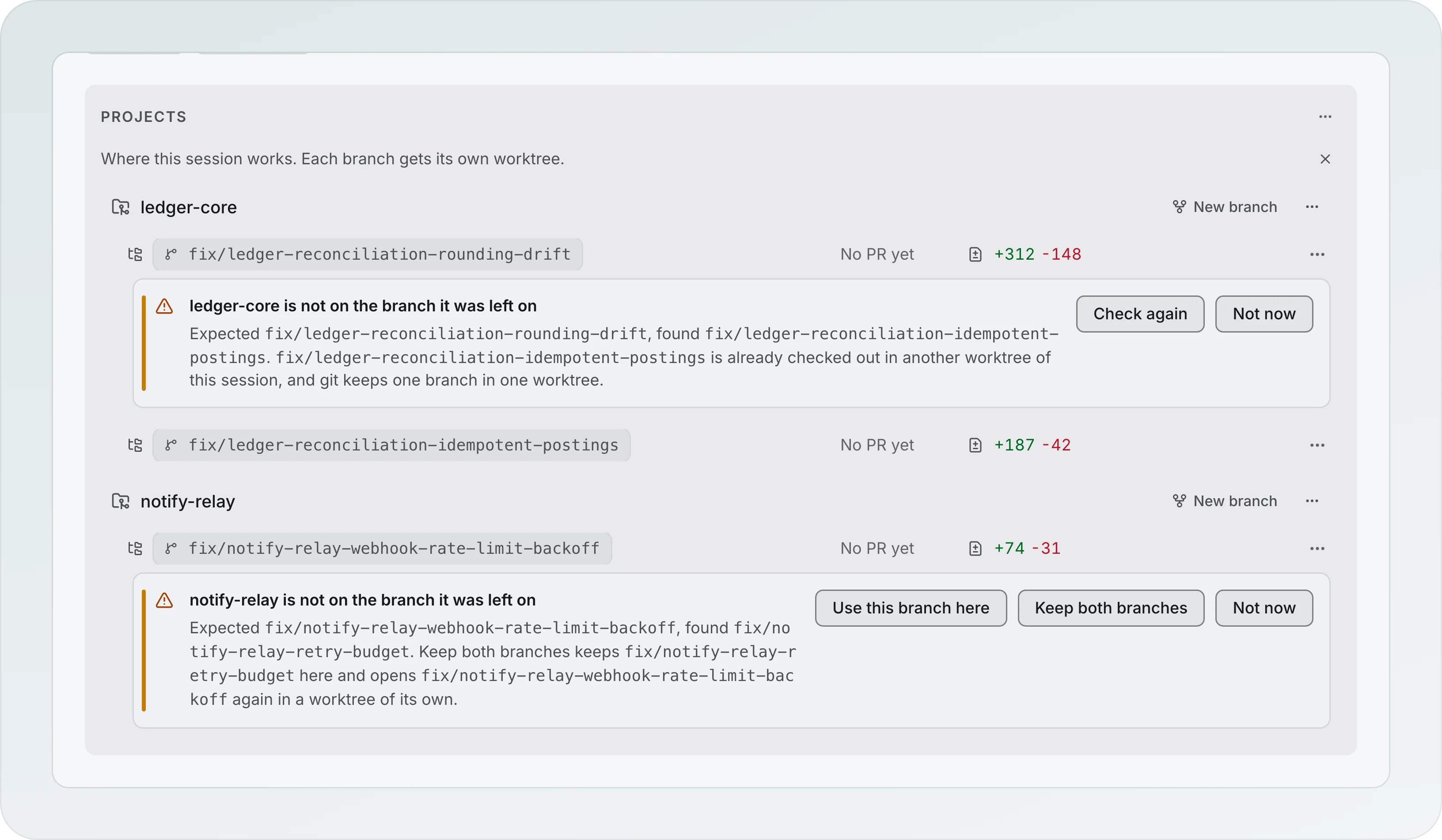
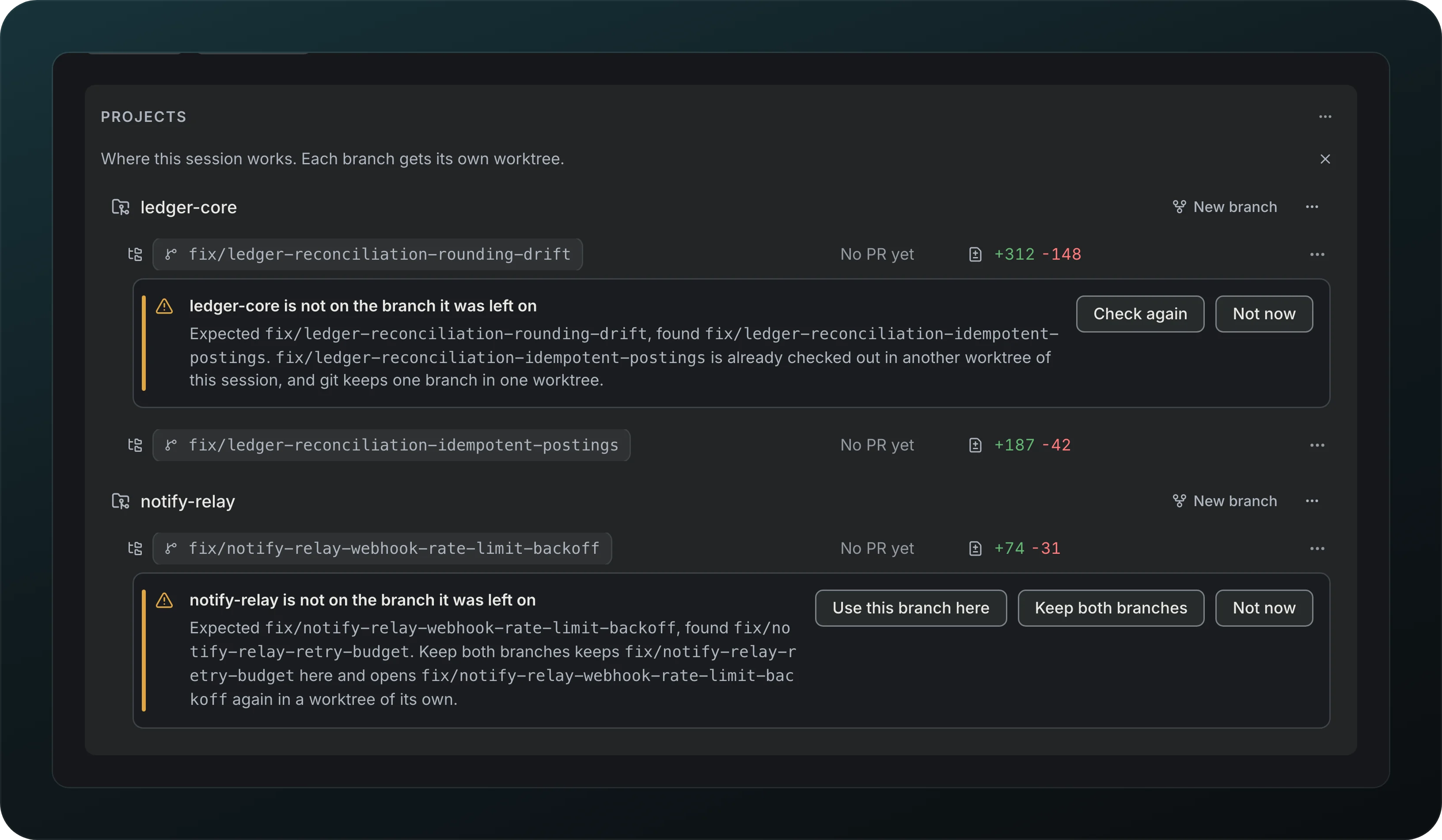
Work on several branches of one repo in the same session: ledger-core shows two, each in its own worktree. If a worktree drifts to another branch, a card says the project is not on the branch it was left on and offers Use this branch here or Keep both branches, which opens the original branch again in a worktree of its own. When git already has that branch checked out in another worktree, the card offers Check again instead.
Workspace switcher and Reconnect
Jump between workspaces and projects from one search. Disconnecting a workspace keeps its history, and adding its folder again offers Reconnect.
Repo status across projects
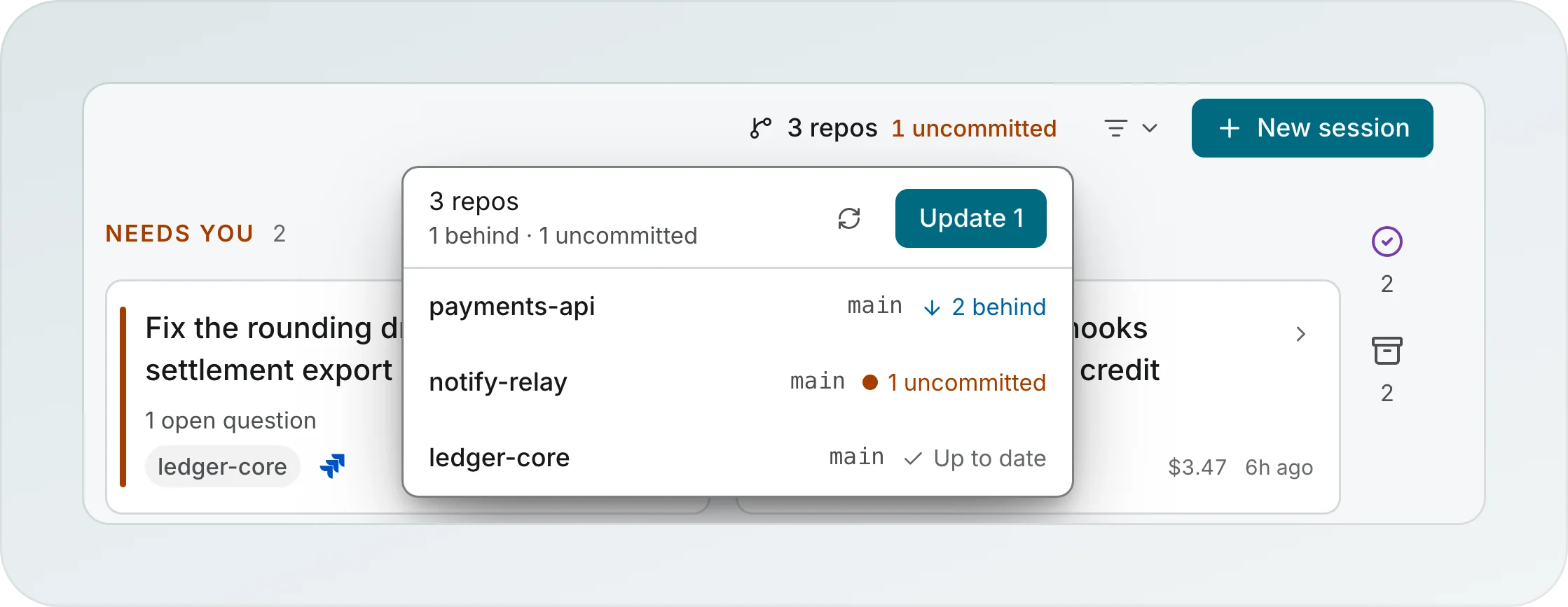
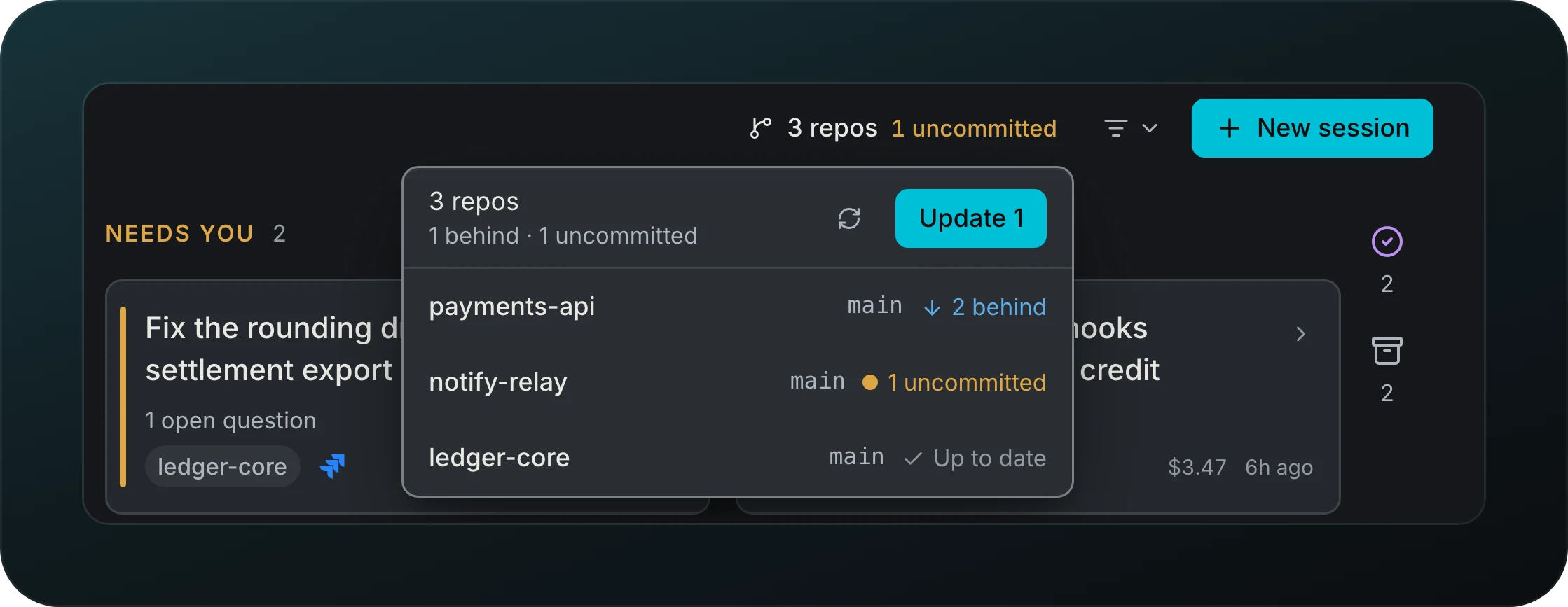
Screenshot from Goodboy 0.13.1
See which repos are behind, uncommitted or diverged from the N repos popover in the board header, and update the safe ones together with Update 1. Updates are fast-forward only and leave dirty or diverged repos to you. Check origin refreshes the list.
Locate moved projects
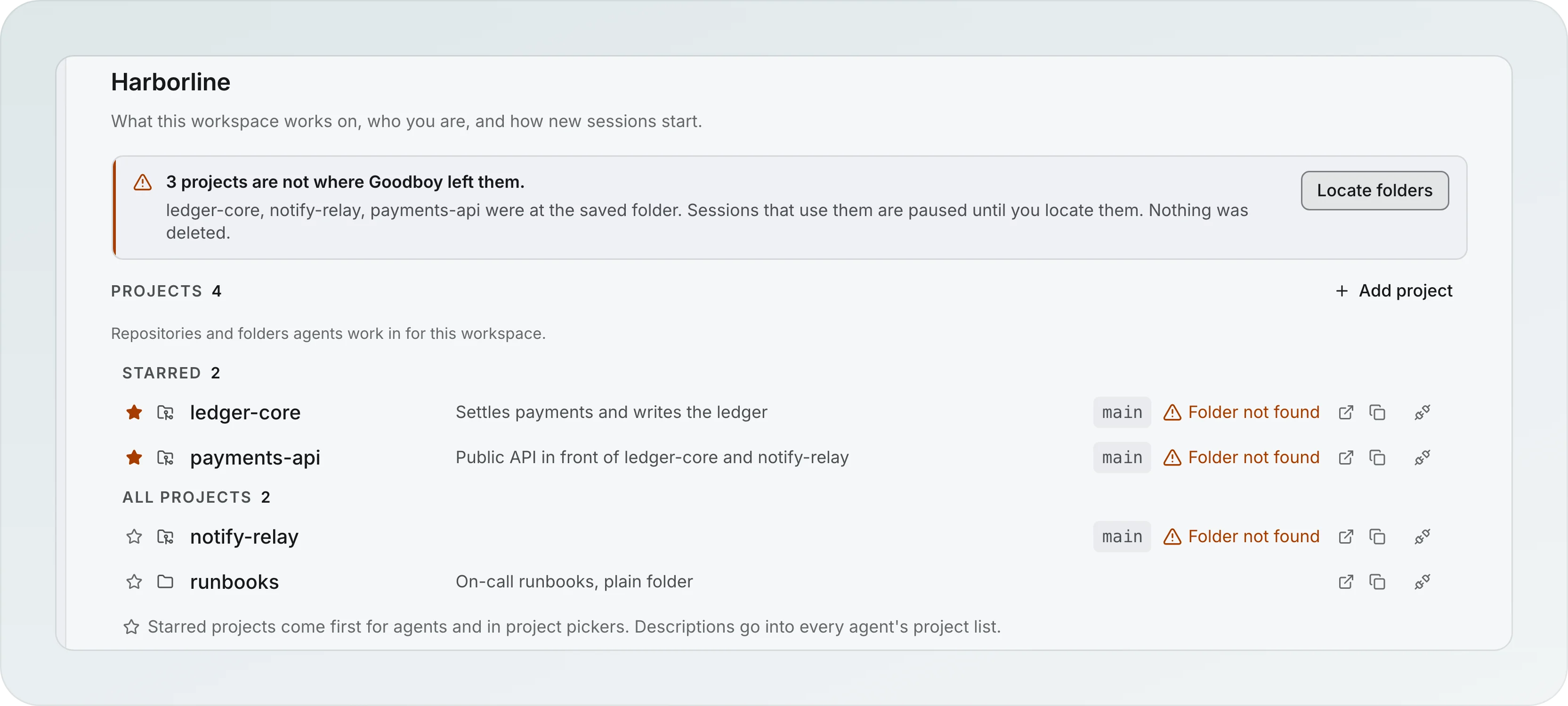
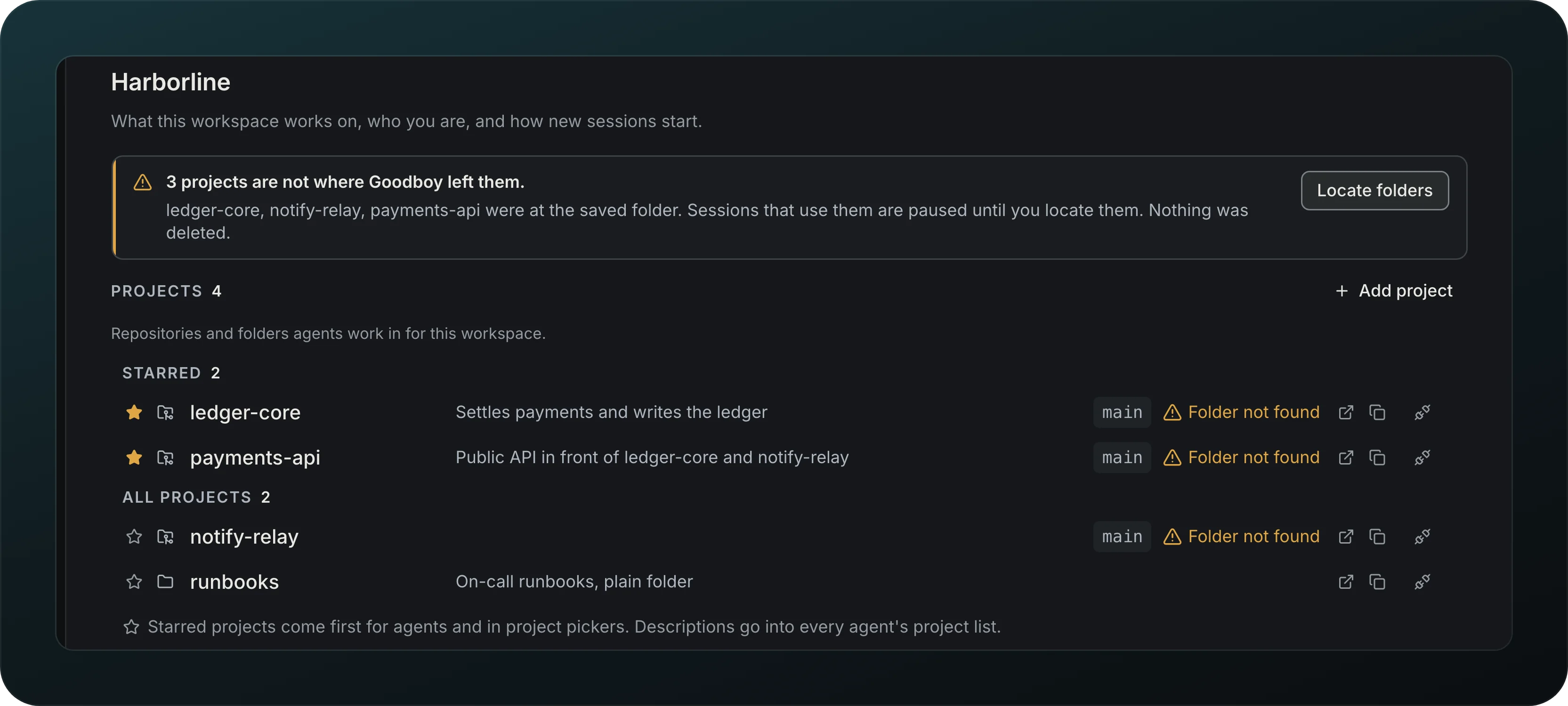
Screenshot from Goodboy 0.13.1
Moved your repos to a new folder? The warning in the workspace settings names the projects Goodboy cannot find, and their sessions wait. Choose Locate folders, pick the parent folder, and Goodboy finds them, fixes the stored paths and repairs the worktrees, with Undo move. Repos are matched by their first commit and remote, not by folder name.
Keep .goodboy out of git
Keep Goodboy's own folder out of your commits with one click. The card shows up only when git does not already ignore .goodboy, your global rules included.
Branch names
Pick how new session branches are named. New sessions, in workspace settings, holds both fields: the Branch prefix takes letters, numbers, - and /, and Branch name offers the name without a task id, the name with the task id first (the default), or Custom, a template with {prefix}, {task-id}, {slug} and {user}. Each choice is labelled with the name it gives your last session, and a template git would refuse says why before it is saved. Existing branches keep their names.
Copy settings from another workspace
Workspace settings has one page per area: Projects, About you, New sessions, After merge, Replies and commits, Permissions and Skills. Disconnect sits at the end of Projects and App > Backup ends with Reset. A dot after a label means the value is not the default; its menu has Reset. From the menu of a page, Restore defaults puts that page back, and Copy from… takes the values of another workspace. Copy all pages from… and Restore all workspace defaults, under a line in the same menu, do the same for every page at once, workflow rules included, which are edited only in the Run defaults tab of Workflows. ⌘K offers the same two as Copy settings from another workspace and Restore workspace defaults. You see what changes, page by page, before anything is saved, and Undo puts it back. Projects, folders, accounts and permission history are never copied.
Stop tracking acts immediately and offers Undo for about 10 seconds. Cmd+Z outside text fields restores the latest app operation; restoring a tracked task never changes its session links.