Tasks and your tools
Connect your trackers, code hosts and Slack once. Their work lands in one list called Tasks, and agents can read and act on it.
Supported tools
Connect the ones you use in Settings, Integrations. Each one feeds Tasks and can start a session with its brief drafted.
- GitHub: issues and pull requests, review comments you resolve with an agent, and the Branch page
- GitLab: issues and merge requests, with threaded discussions, replies, approvals and merge
- Bitbucket: pull requests, with comments, approvals and merge
- Jira: issues you comment on, assign, edit and move between statuses
- Linear: issues you comment on, assign, edit and move between states, with threaded replies
- Sentry: errors with stack trace, breadcrumbs and tags, ready to hand to an agent
- Slack: threads from the channels you pick, where agents read, reply and react, and replies wait for your OK by default
Agents use your tools
Let agents on any provider read and act on GitHub, GitLab, Bitbucket, Jira, Linear, Sentry and Slack, as far as you connected them, without handing them your keys. The agent asks Goodboy over a local socket only your user can open, and Goodboy makes the call.
Tasks
Screenshot from Goodboy 0.23.0
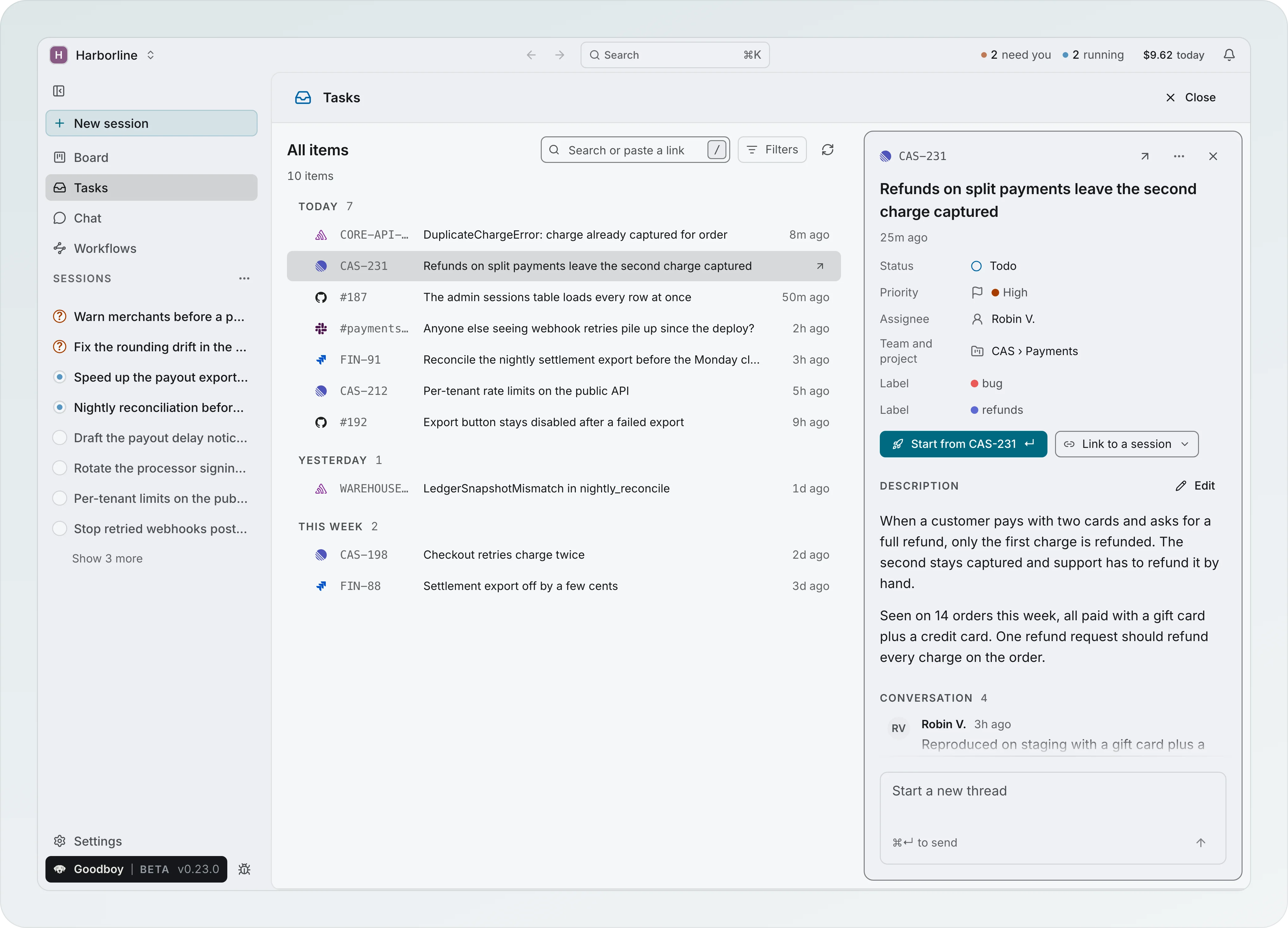
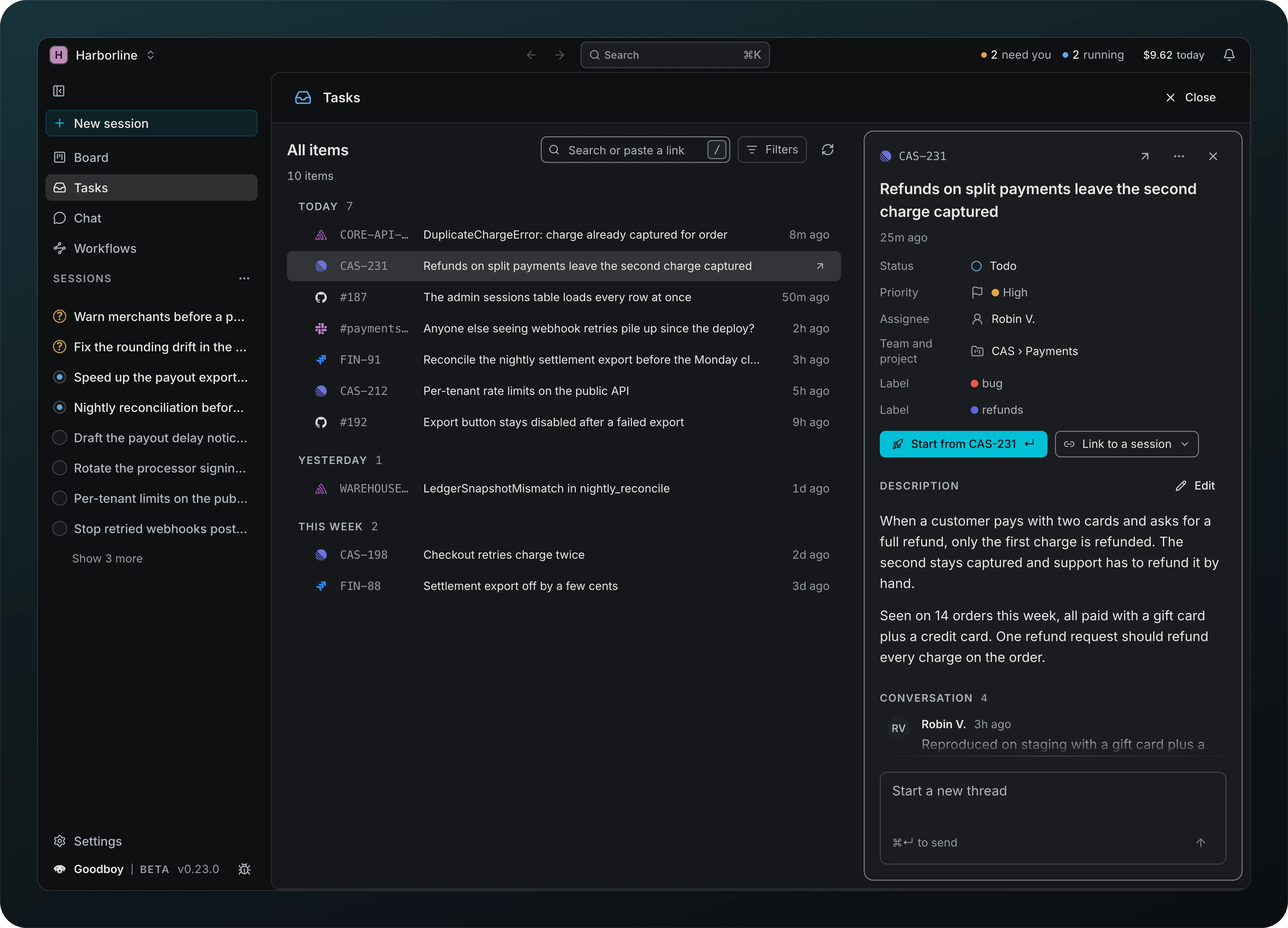
Work from one list instead of seven tabs. Issues, Slack threads and Sentry errors from your connected tools sit together, grouped by day, next to pull requests from GitHub (review requests and your own recent ones) and merge requests from GitLab and Bitbucket. Narrow the list by View, Type, Source and Project, and move with j and k. Sentry errors filter by the project they belong to, and GitHub or GitLab items too when several projects live on that host. Linear and Jira stay one flat list. A row shows its status word only when the list mixes states, so a list of open items does not repeat Open on every row.
Find any issue by code or link
Screenshot from Goodboy 0.23.0
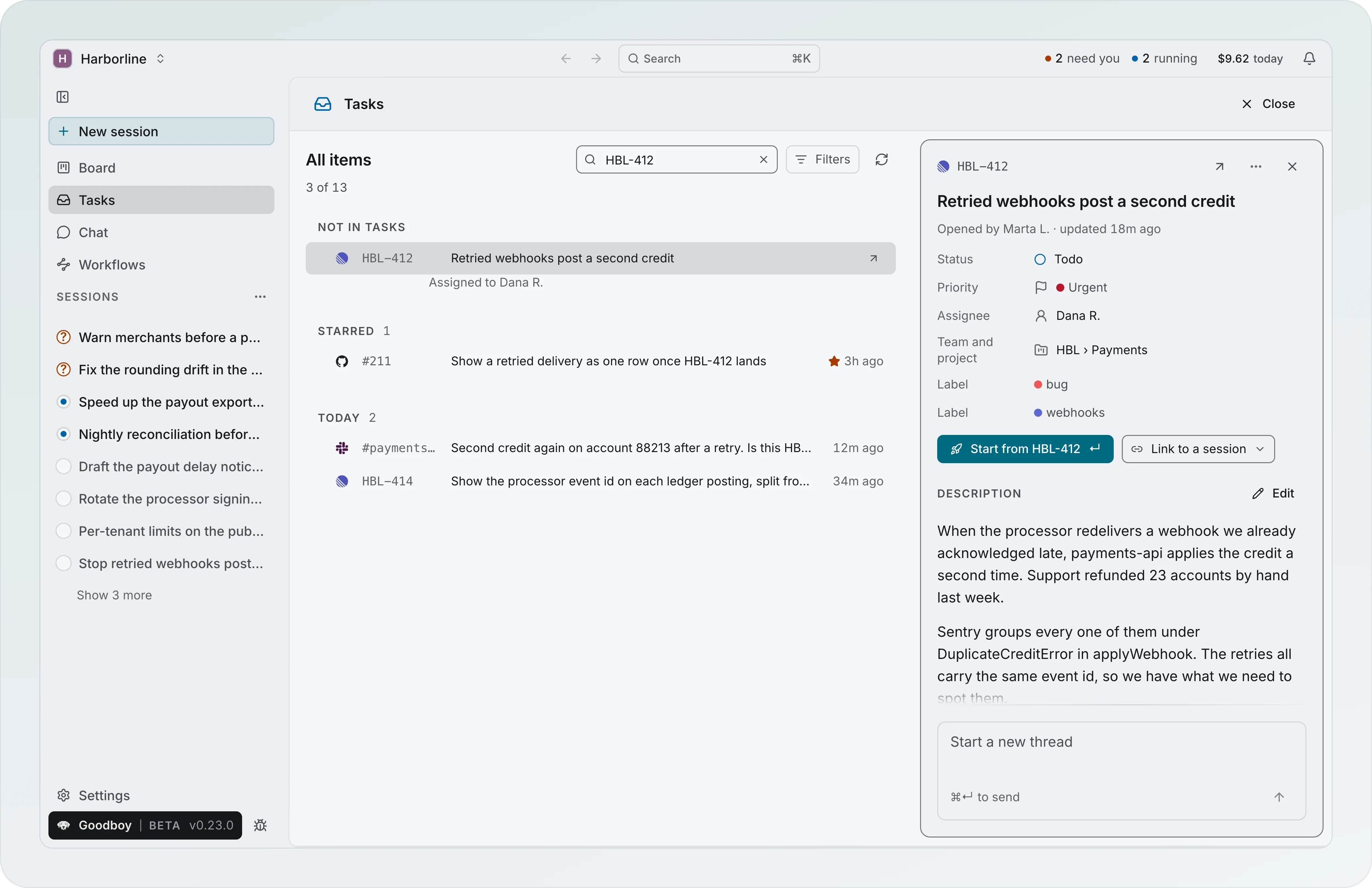
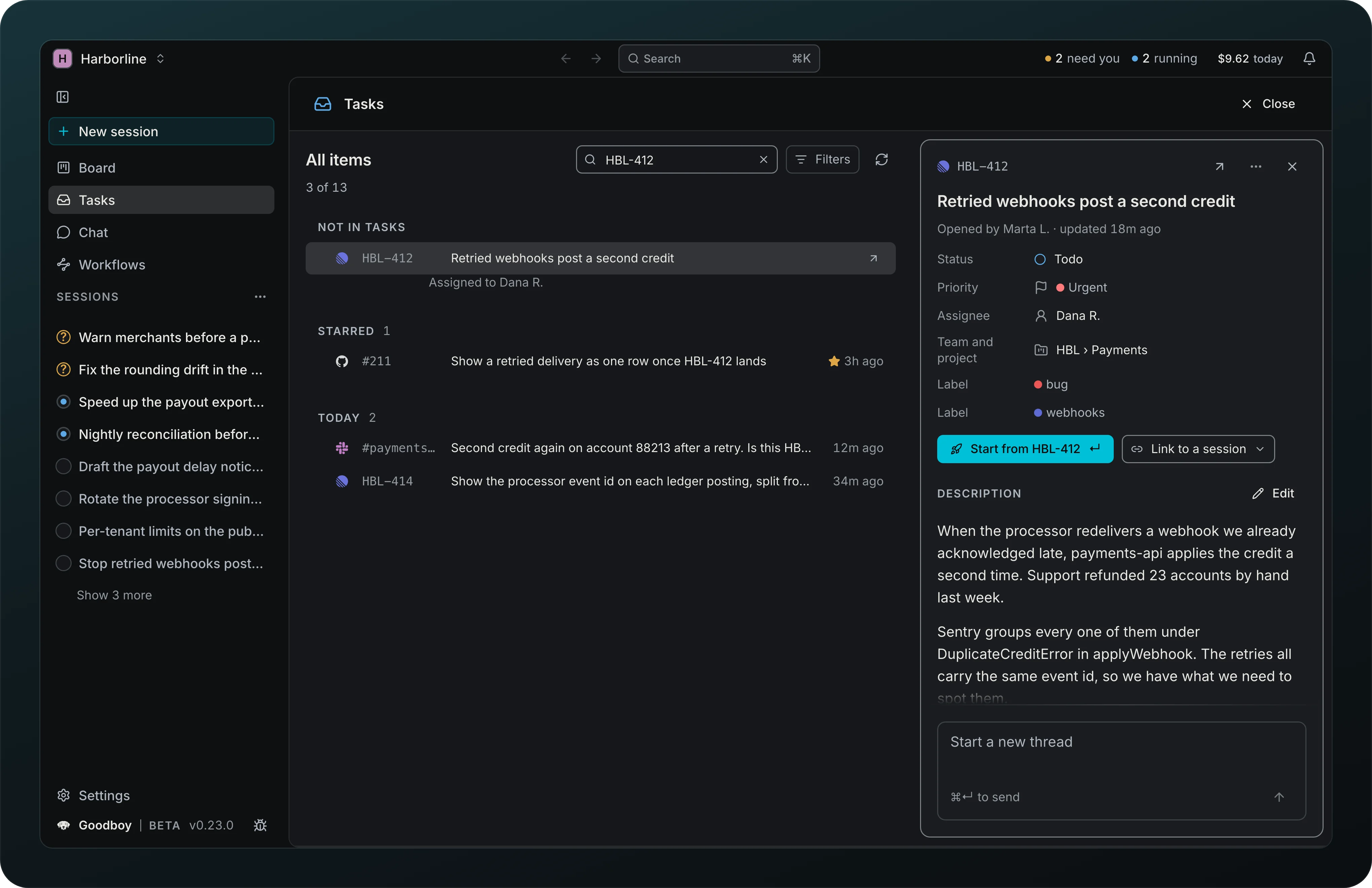
Paste HBL-412, #318 or a link in the search box and open the issue, even when it is not assigned to you. It appears under Not in Tasks with its full details beside it. An unknown prefix is tried on Linear and Jira at once.
Starred issues
Star an issue to keep it on top of Tasks and of Pick up a task. In the search result above, the Starred group holds the GitHub issue #211.
Start from any item
Press Start from HBL-412 on an issue or an error and the New session draft opens with the issue picked and its brief being written. Pick how to work on it and press Start again: the session, the run and a Follow toast come in one step. A Slack thread, a merge request or a pull request of yours opens a short panel instead, with the same Start from #318, and a Sentry error or a GitHub or GitLab item opens in its project, and the panel says why. Review pull request replaces Start on a pull request waiting for your review: it starts a read-only PR reviewer and opens the Pull request tab. Press Enter on a row to do the same without the mouse.
Link an item to a session
Attach a Tasks item to work that already exists. Link to a session sits next to Start from HBL-412 and links the task to the session you pick. From a session it works the other way round: Link work in the Overview header, or L, opens one search across every connected tracker, with your recent Tasks items on top. Filter by source, type an issue code, or paste a link. Under the search, pick where the link lives: This session (the default) or Whole workspace. A session link closes the task when its pull request merges; the line under the preview says so ("Will close ENG-412 when merged") and Don’t close turns it into "Part of ENG-412" in the pull request body instead. A whole-workspace task never closes from a pull request: it shows under Ongoing on the Board, not on any session until you link it there. A task you already linked stays in the list with where it lives, such as "Linked to this session", so you can add it to the workspace too; the scope it already has never links twice. A linked task shows once on the session header, the Board card and the sidebar row, with a +N for more tasks. To put it on a branch afterwards, use Put on a branch on the branch row: choose a linked task, or New worktree for the task to give it a branch named after the task. The task chip opens the task directly. Its ✕ appears on hover or keyboard focus: on a branch it takes off that placement, while on the session it removes every placement. These removals act immediately, with Unlinked NW-142 · Undo for about 10 seconds; Cmd+Z undoes the latest app operation outside text fields. Stop tracking on the Board and Take off this branch use the same Undo. Undo restores the complete snapshot atomically and leaves a task that was re-linked meanwhile alone. Re-link on the unlink event restores its saved placements; an older event opens Link work prefilled. A task linked from several sessions lists every one of them on its Tasks record.
Trackers
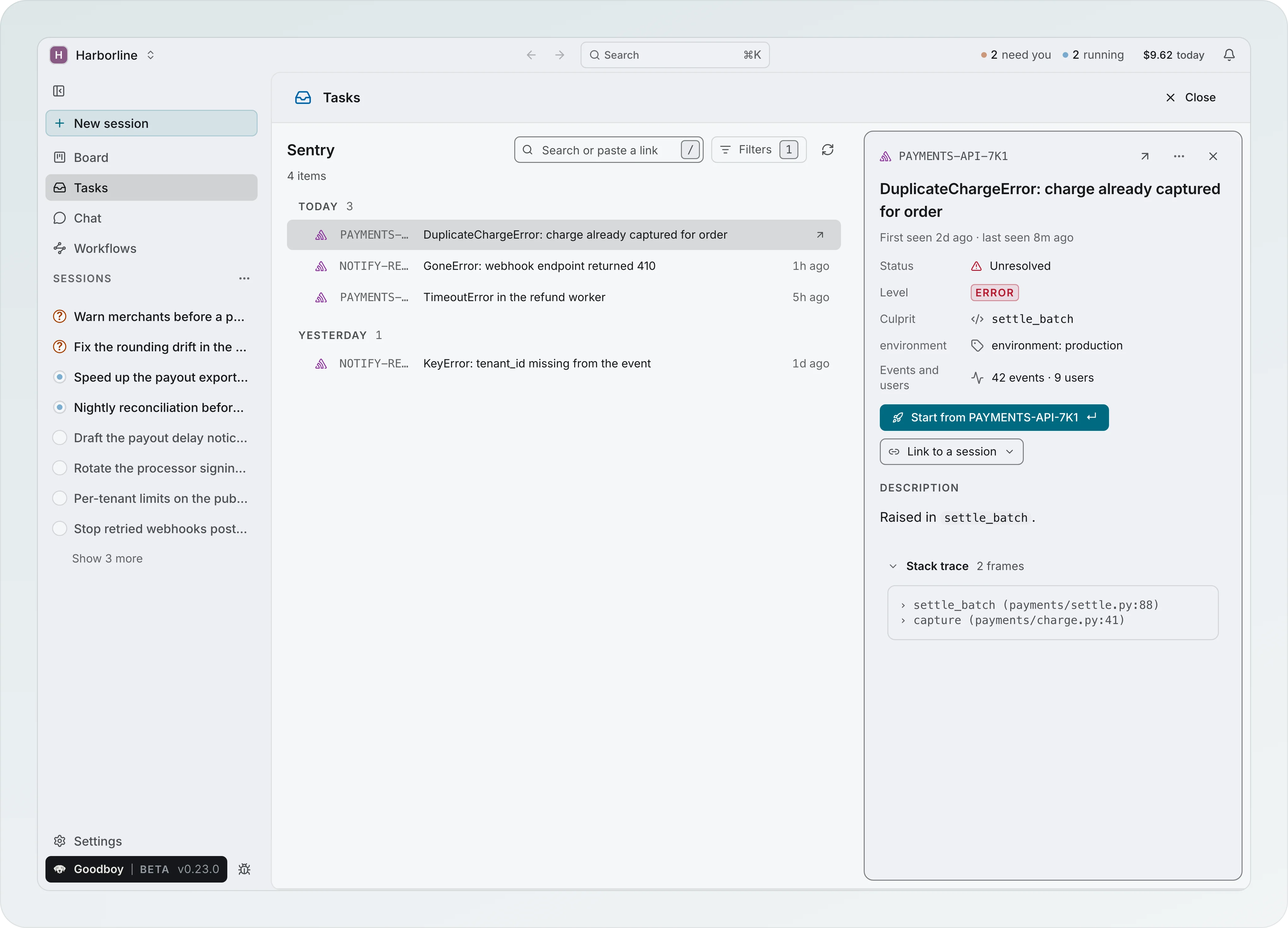
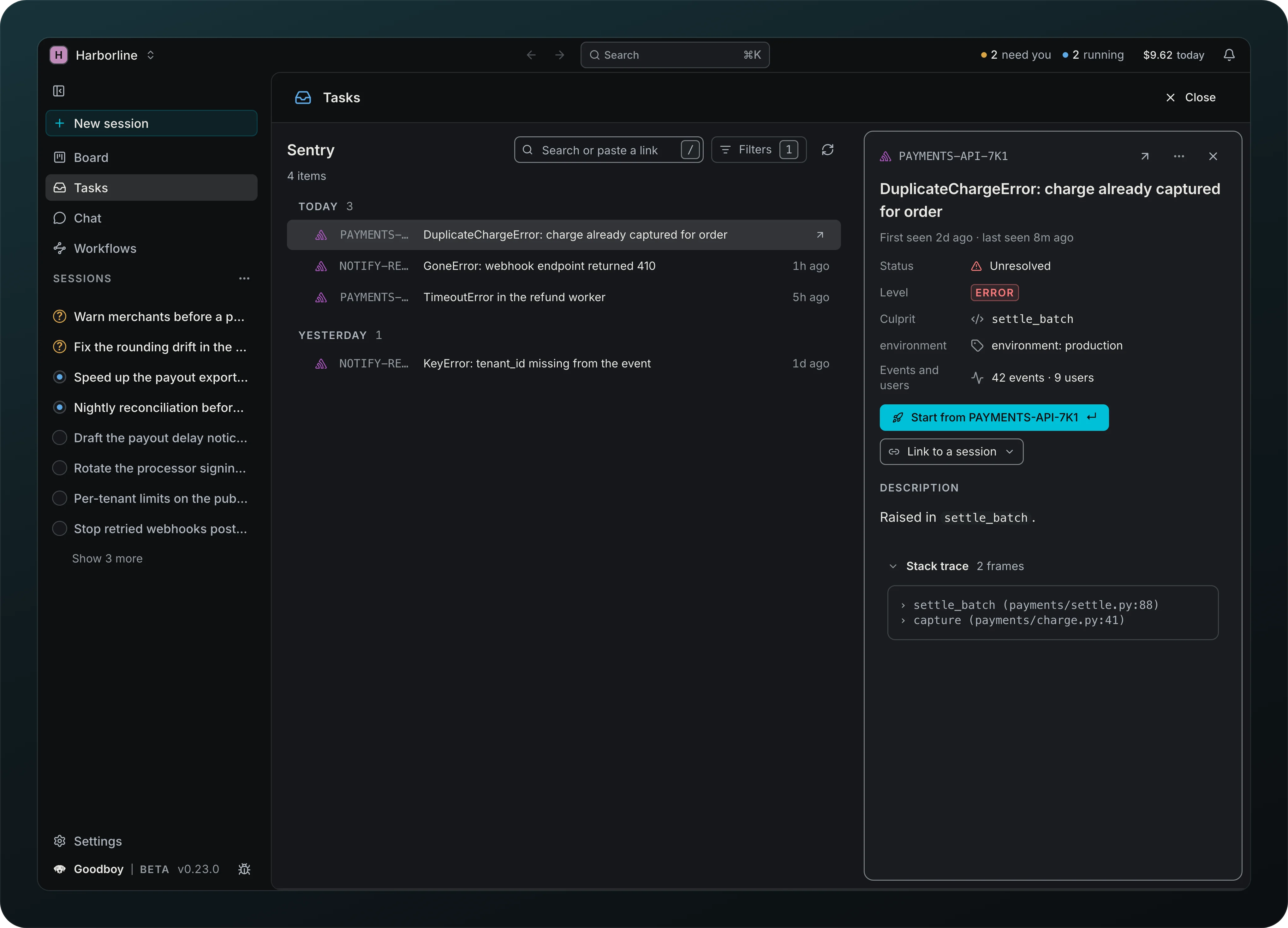
Screenshot from Goodboy 0.23.0
Read Sentry errors with stack trace, breadcrumbs and tags inside Goodboy, and filter them by project. Comment, assign, edit and move issues in Linear and Jira the same way.
Code hosts
Work on GitHub pull requests and issues, GitLab merge requests, and Bitbucket comments, approvals and merges without leaving Goodboy. GitHub and GitLab can work side by side, one for code and one for tickets.
Slack: what agents can do
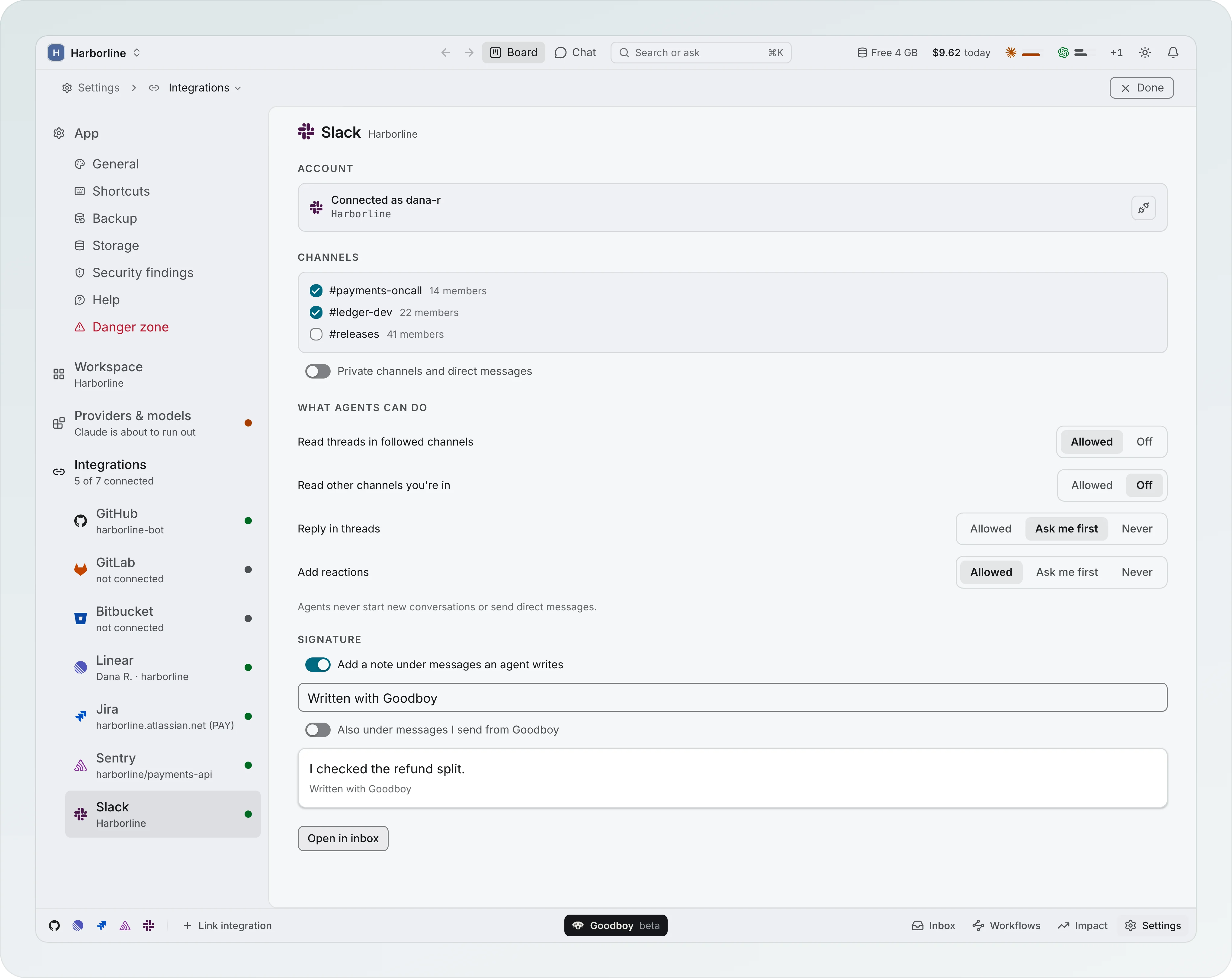
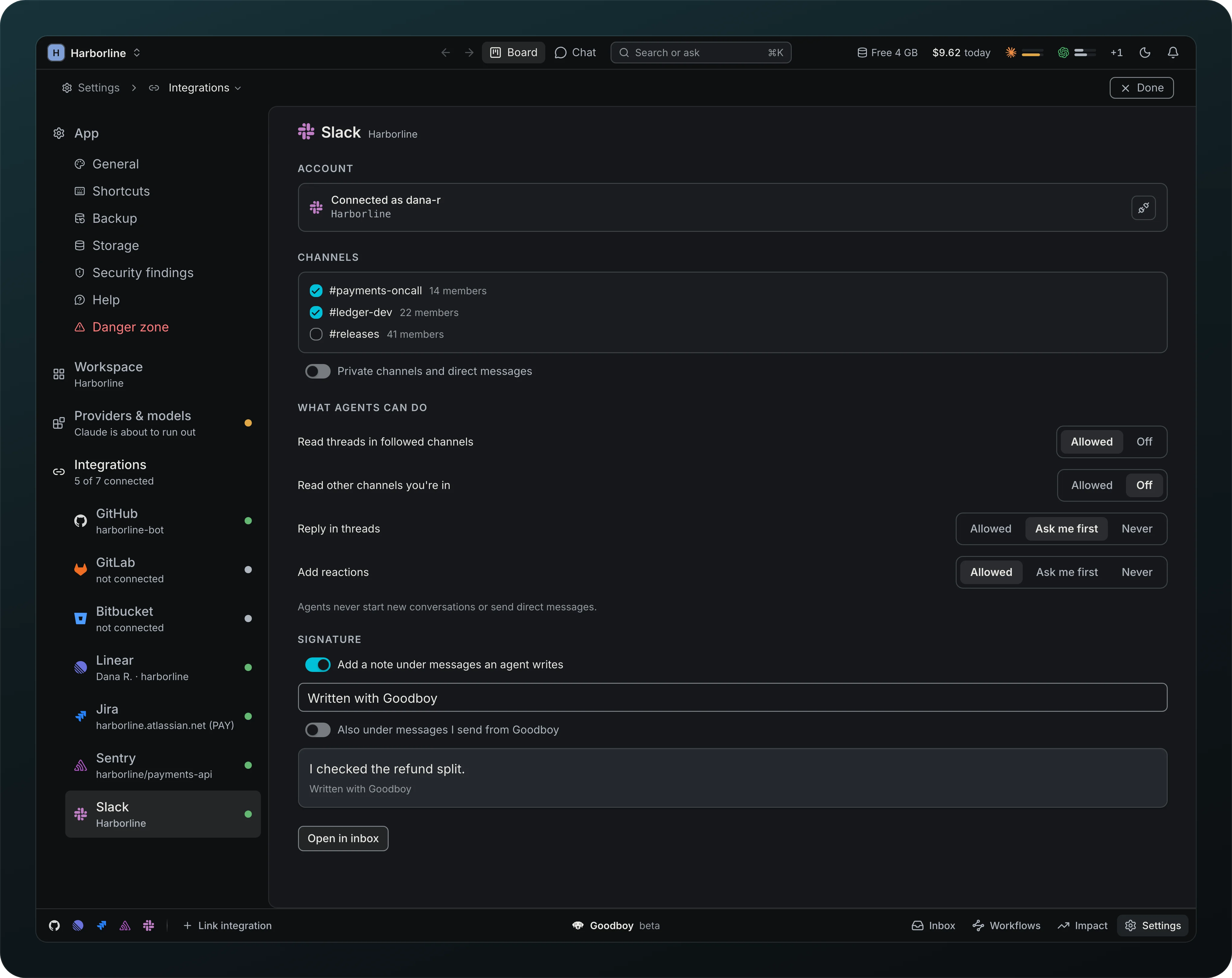
Screenshot from Goodboy 0.13.1
Decide how far agents go in Slack. Tick the channels they follow, then set each action: Read threads in followed channels and Read other channels you're in are Allowed or Off, Reply in threads and Add reactions are Allowed, Ask first or Never. Replies default to Ask first, and agents never start new conversations or send direct messages.
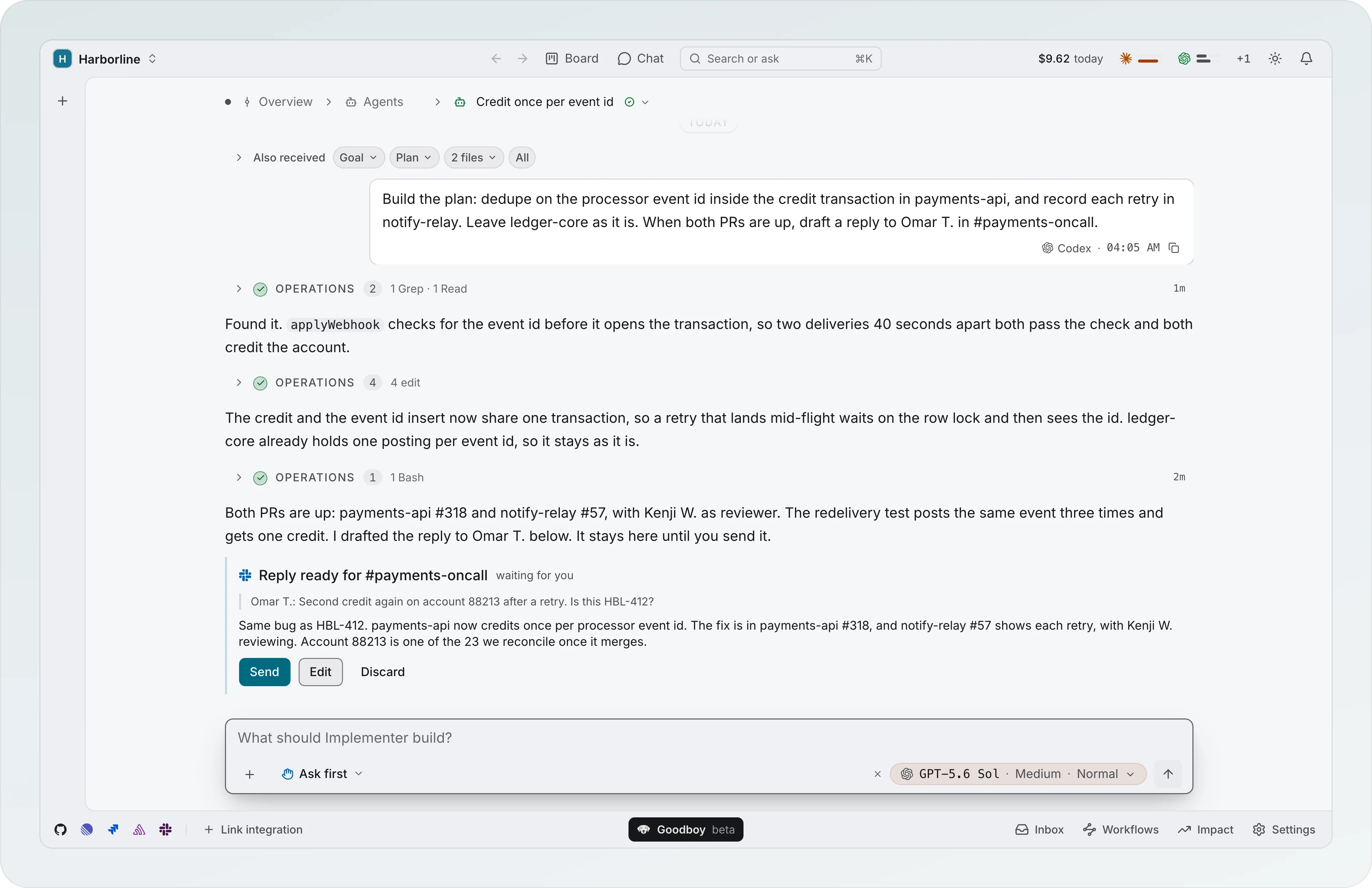
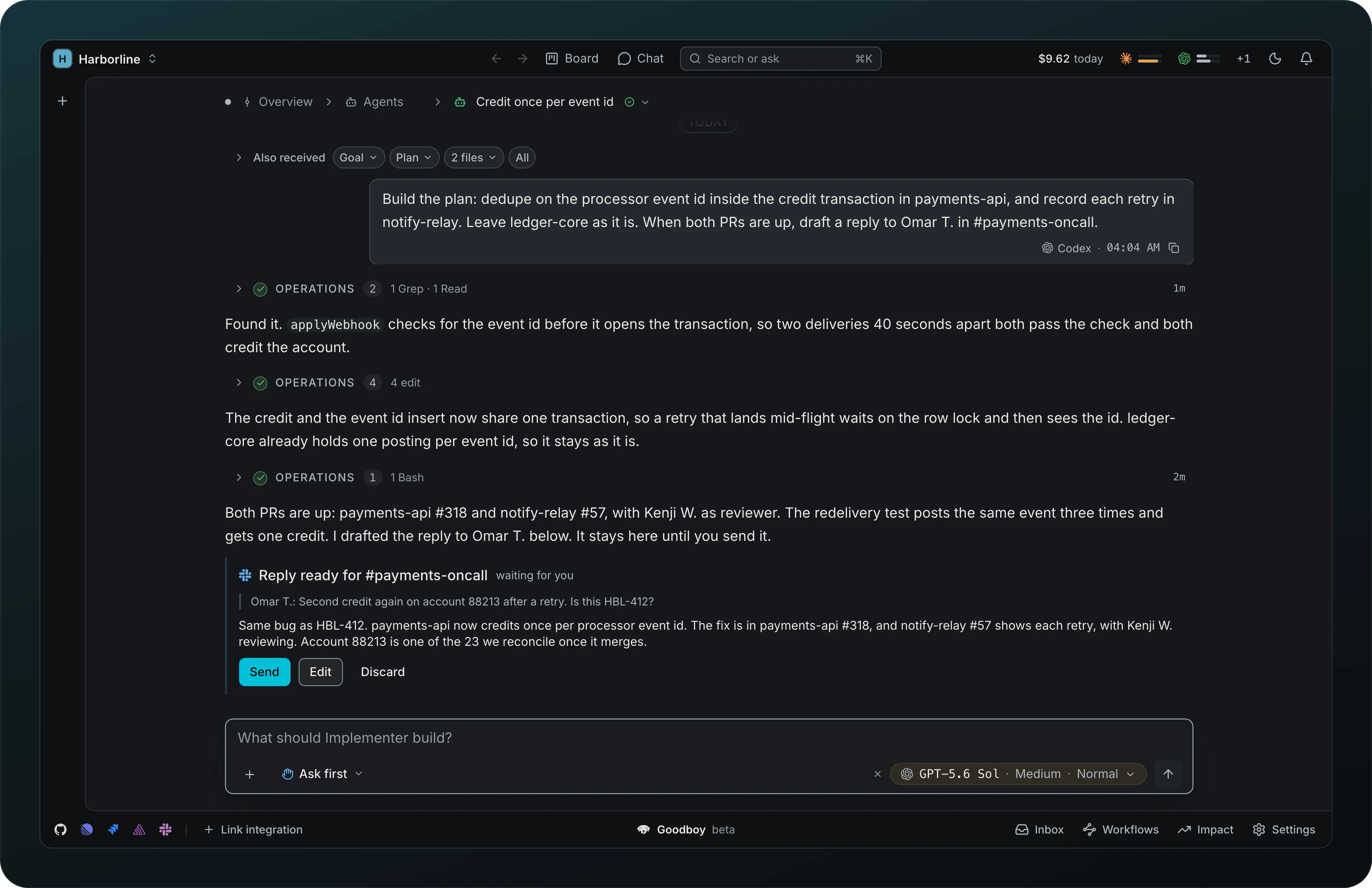
Reply ready for #channel
Screenshot from Goodboy 0.13.1
Approve what goes out in Slack from where you already are. Under Ask first, the agent's reply waits in the session as a card with the message it answers and the draft, and you choose Send, Edit or Discard.
Slack signature
Let people in a thread see when an agent wrote a reply. Under Signature in the Slack settings above, the note under agent messages is "Written with Goodboy" by default, and you can change the text or switch it off. A second switch adds it to messages you send from Goodboy.
Images from your tools
See screenshots attached in Linear, Jira and GitHub inside Goodboy. Your key goes only to that tool's own image host.
Records read the same way
Read items from any tool the same way: one list of labels and values, with who opened them and when.
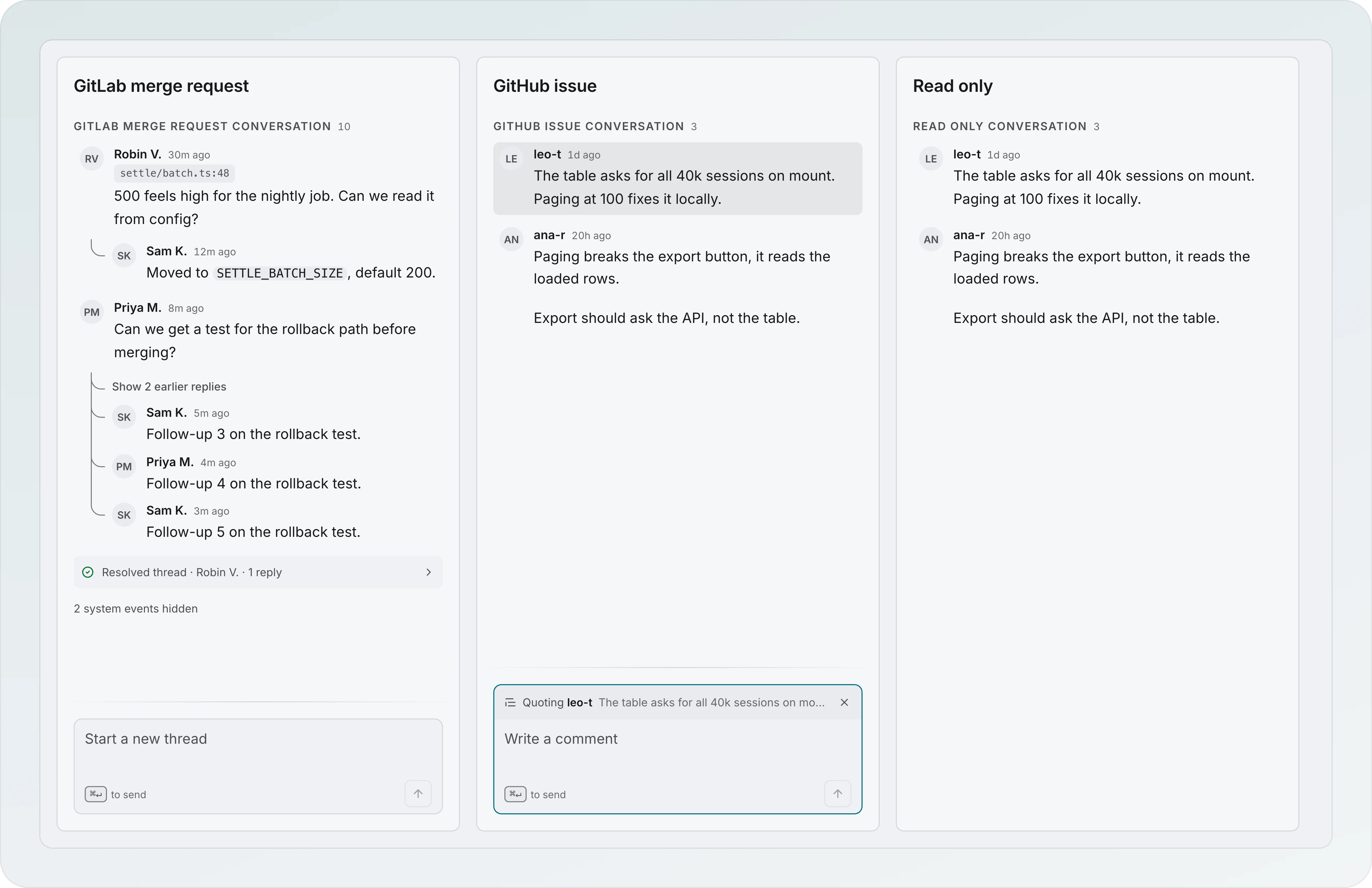
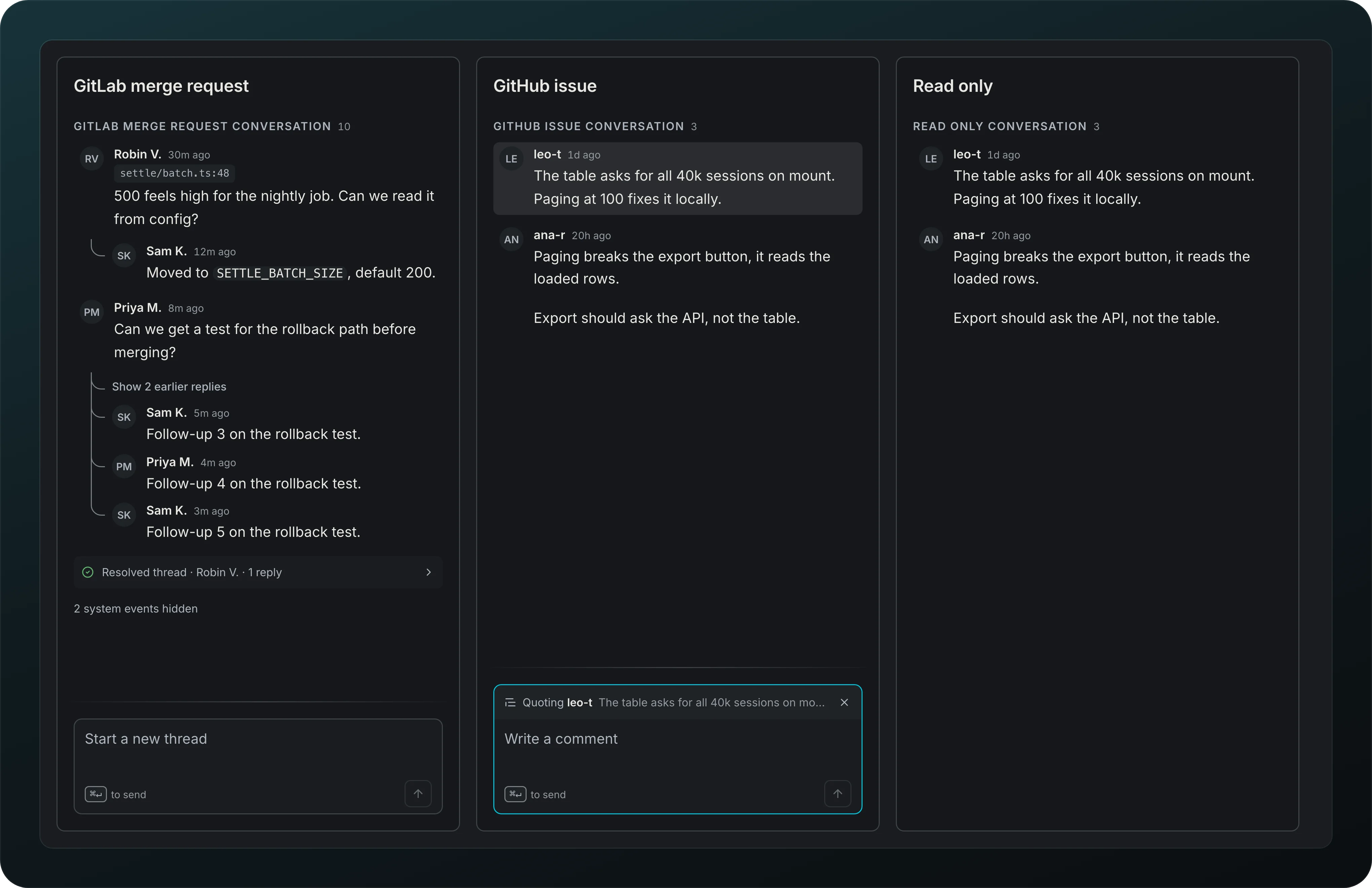
Comment threads
Screenshot from Goodboy 0.13.1
Follow replies under the comment they answer, in Linear and GitLab, and fold long threads behind Show earlier replies. Press Reply on a comment to answer inside its thread, or start a new one in the box below. Where a tool has no threads, the box shows Quoting and the name of the comment you answer.